Viewing and paying client invoices
Find, review, pay, download, and share invoices from the client portal.
Written By David Dayan
Open Invoices in the client portal to review balances, open an invoice, pay online, or share an invoice link with the person responsible for payment.
Find an invoice
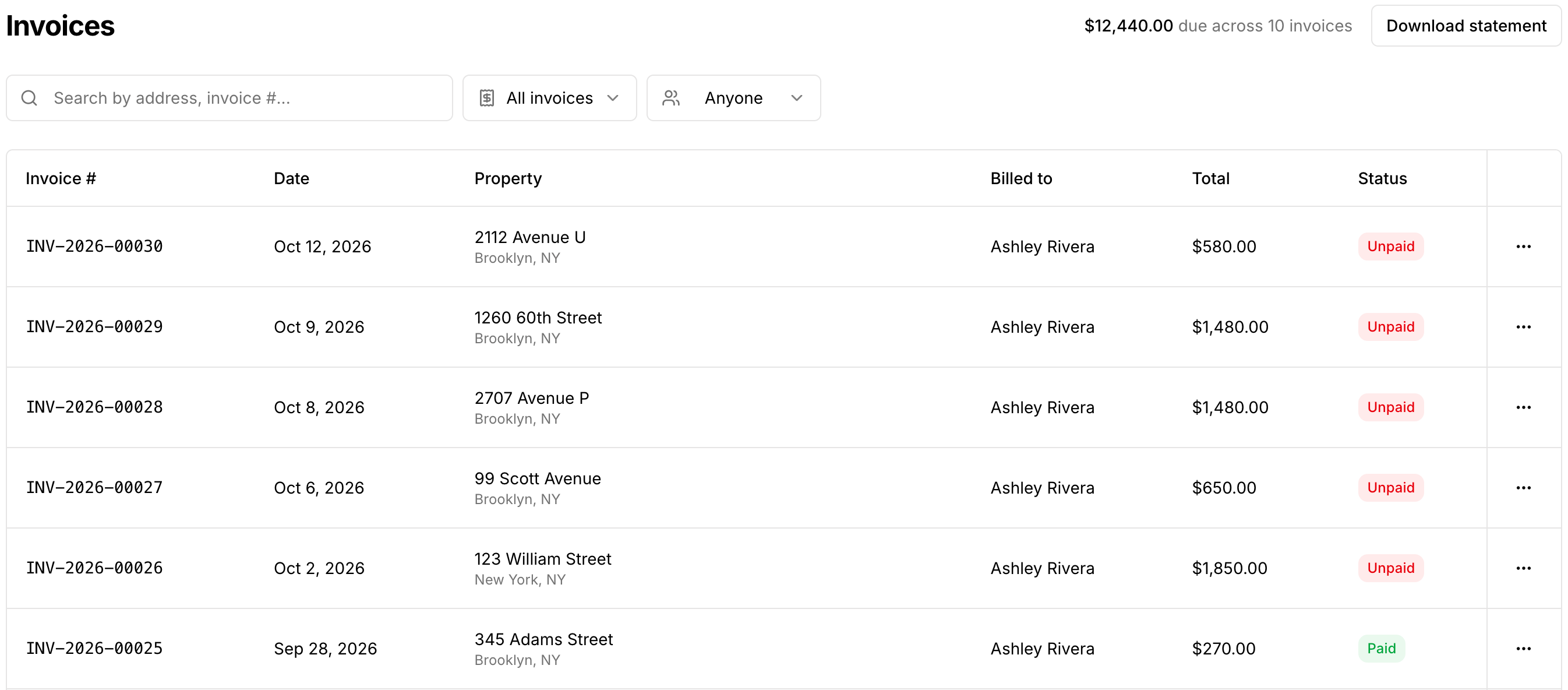
The invoice list shows the property, invoice number, total, and payment status. Search by property address or invoice number, or use the Payment filter to find paid, unpaid, or partially paid invoices. Brokerage admins can also use Billed to to choose the brokerage or an agent.
Select an invoice row to open it. The row’s More actions menu also offers Open invoice, Download PDF, and Copy link.
Review the invoice
The invoice page shows the billed client, property, line items, total, payment history, and current balance.
Use the actions above the invoice to:
Open the related listing when you are signed in.
Download a PDF.
Email the invoice.
Copy a public link for the person handling payment.

Pay an unpaid balance
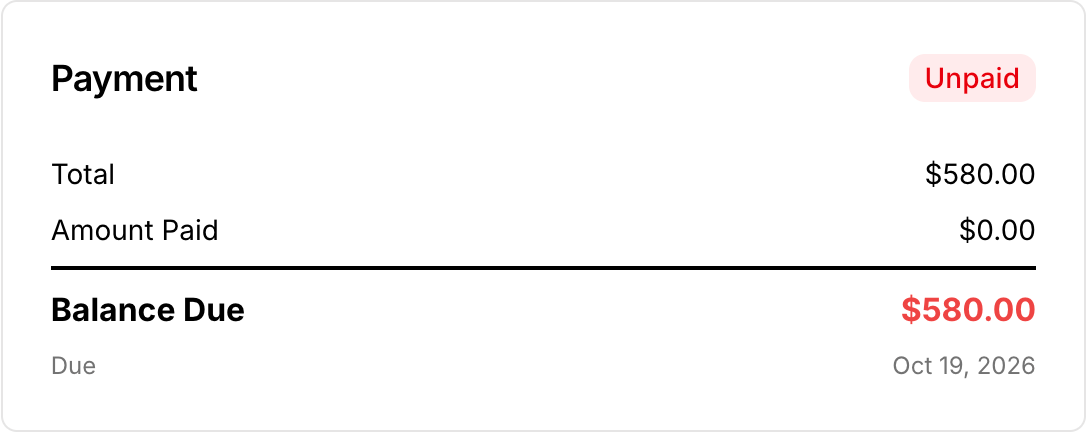
Available payment choices appear in the Payment card when the invoice has a balance due. The choices depend on the photographer's payment settings and may include:
A saved card or a new credit or debit card.
Pay at close through Titus for an eligible property.
Select the payment method, complete the requested details, and submit the payment. Keep the invoice open while Photeria confirms it. The balance and status update after the payment is confirmed.
If Pay at Close is sent for review, return to the same invoice later. Do not submit the payment again while Titus is reviewing the application.
Pay several invoices together
When your photographer accepts cards through Stripe:
Select Pay invoices from the invoice list.
Keep the invoices you want to pay selected and clear the others. Check the total, then select Continue.
Choose a saved card or enter a new card, then select Pay with the displayed total.
For brokerage admins, invoices billed to the brokerage and invoices billed to individual agents appear in separate groups. Check both groups before paying.
Pay at Close is completed on one invoice at a time.
Download a statement
Select Download statement from the invoice list to save a PDF with your outstanding balance and unpaid invoices. For a brokerage admin, the statement covers invoices billed to the brokerage.
Share an invoice
Select Copy Link and send the link to the person responsible for payment. The invoice link opens without a portal login, so it can be used by an office manager or another payer.
Payment does not complete
If a card payment is declined, try another card or contact the card issuer. If the payment was submitted but the invoice still shows a balance, refresh the invoice after a few minutes before trying again.
Was this helpful?
Still need help? Share an idea