Branding your account
Use Settings → Brand to give your client portal, login page, and emails your business's colors and logos.
Written By David Dayan
Use Settings → Brand to give your client portal, login page, and emails your business's colors and logos.
Set colors and styling
Open Settings → Brand.
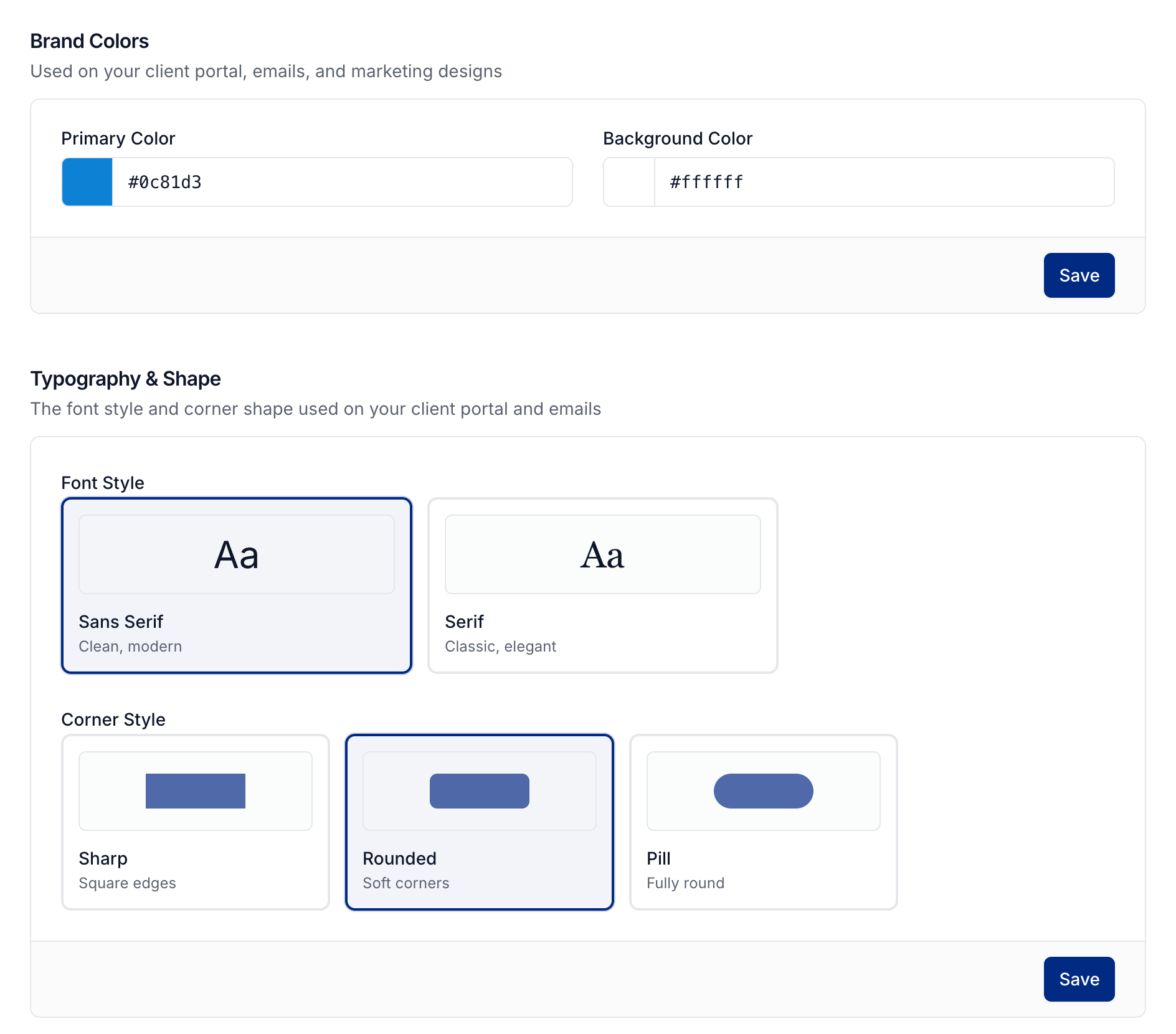
Choose your Primary Color and Background Color, then select Save.
Under Typography & Shape, choose your font and corner styles. Select Save in that section.
Upload your logos
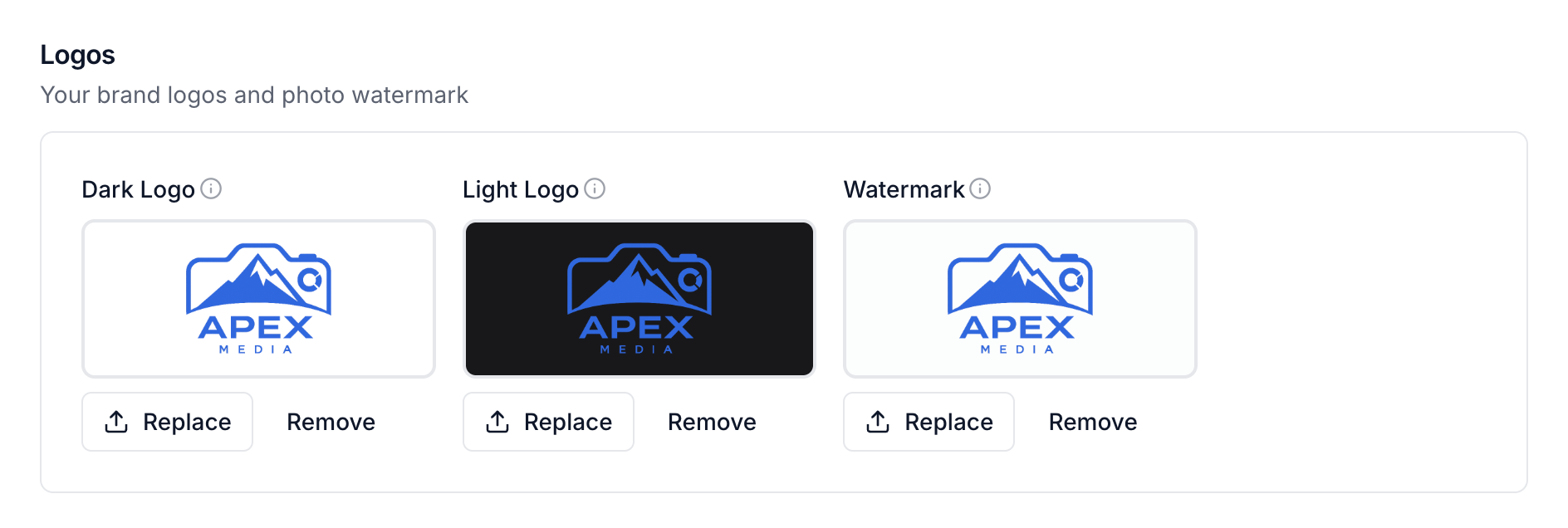
Under Logos, upload a Dark Logo for light backgrounds and a Light Logo for dark backgrounds. Use transparent images so the background shows through around your logo.
Add a Watermark to overlay your logo on photos clients download before their invoice is paid. Upload a Favicon for browser tabs in its own section. To set the image used when someone shares your portal link, open Settings → Client portal → Link Preview.
Select Replace to upload a different image. Uploads and removals save immediately.
Customize the login page
Open Settings → Client portal. Under Login Page, choose None for a plain background, Side for an image beside the form, or Center for a form over a full background image. Upload a Background Image for Side or Center, then select Save.
Style your email header and footer
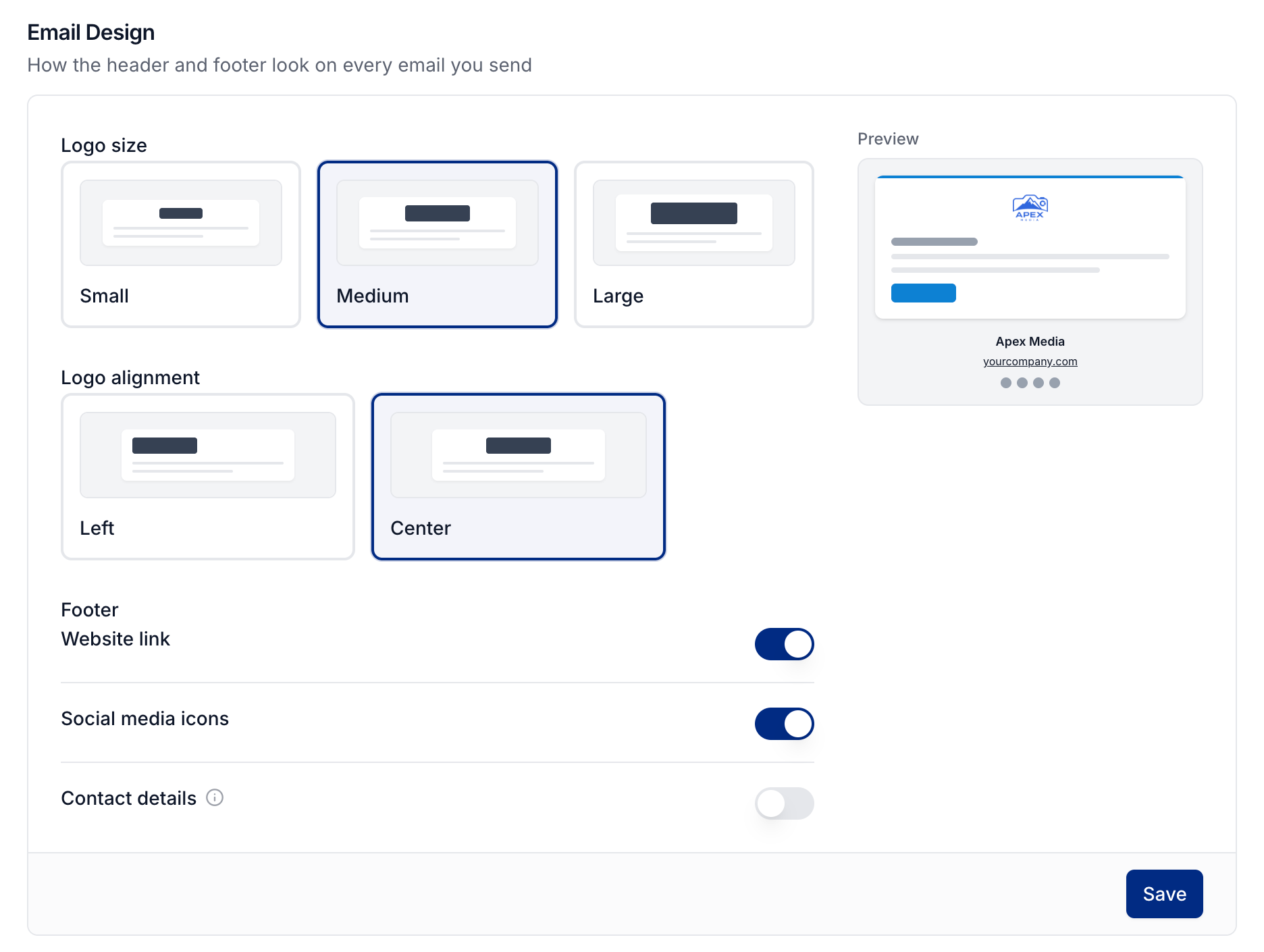
Open Settings → Email. Under Email Design, choose the logo size and alignment. Turn the website link, social icons, and contact details on or off in the footer, then select Save.
The links and contact details come from Settings → General.
To change the email's message or sections, see Customizing client notifications.
Remove Photeria branding
Open Settings → Billing → Add-ons, find Remove Photeria branding, and select Add. Review the charge and renewal terms before paying. You need a saved payment method and Billing: Manage permission.
This add-on removes Photeria's branding from your client portal, order forms, property websites, and client emails. See How Photeria billing works for add-on renewal and cancellation.
Use a brokerage's colors
Brokerages can have their own brand and background colors on their profile. Those colors apply to their agents' listings. You can override them for an individual listing in the Website Editor.
Was this helpful?
Still need help? Share an idea