Creating Your Account
Create a Photeria account for your photography business, activate a team invitation, or recover access to an existing account.
Written By David Dayan
Create a Photeria account for your photography business, activate a team invitation, or recover access to an existing account.
Creating an account for a new organization
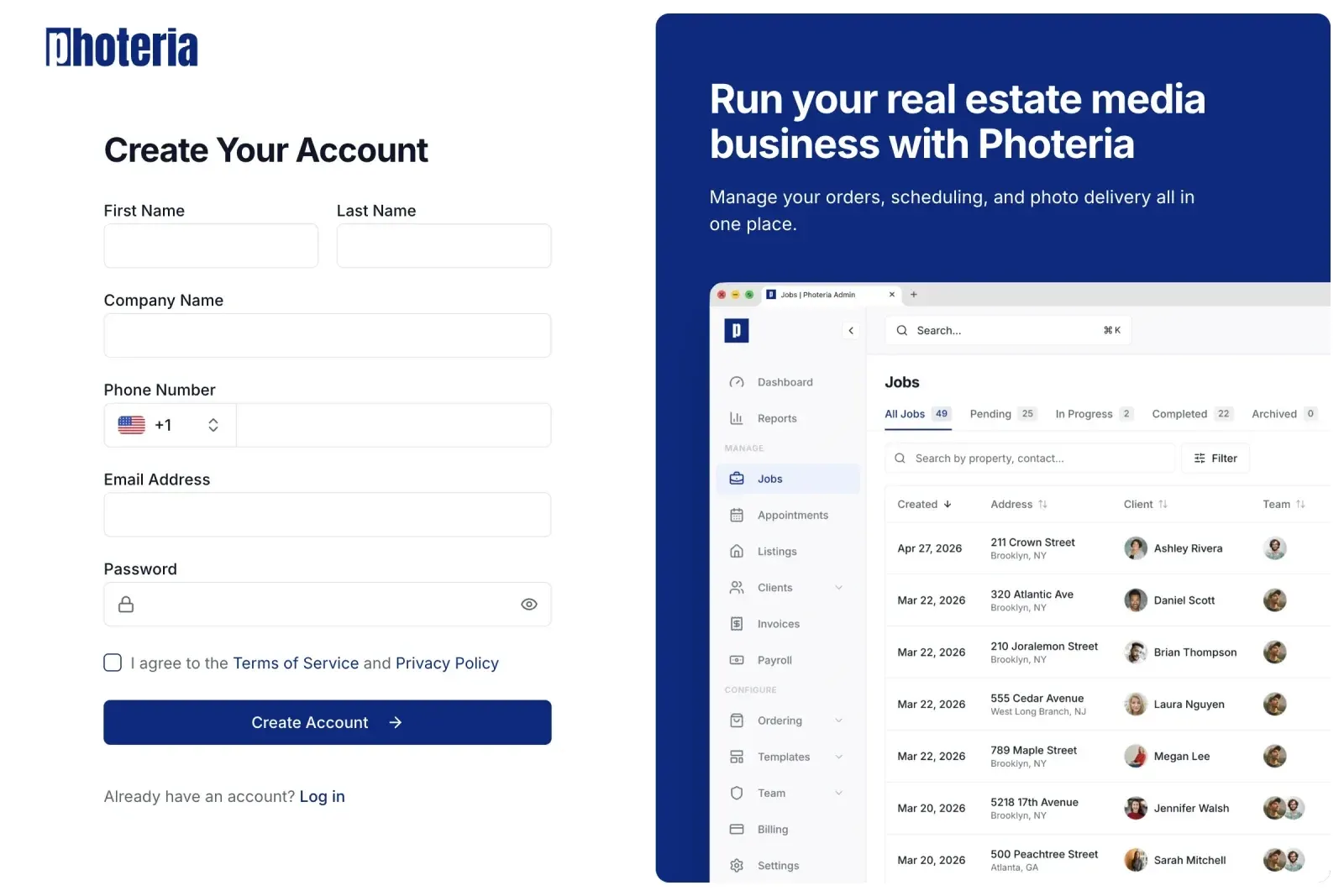
- On the login page, click Sign up.
- Enter your First Name, Last Name, Company Name, Phone Number, Email Address, and Password.
- Accept the Terms of Service and Privacy Policy.
- Click Create Account.
Your password must contain at least six characters. After you create the account, Photeria signs you in automatically.
If someone referred you, open the signup link they shared so Photeria can apply the referral. If public signup is temporarily unavailable, you may see a waitlist form instead. A waitlist invitation link takes you to the full signup form.
Activating a team invitation
- Open the activation link in your invitation email.
- Enter a password and confirm it. The password must contain at least six characters.
- Click Activate Account.
Photeria sends you to your profile after activation so you can finish adding your details. If the invitation link has expired, ask your organization admin to send a new invitation.
Signing in
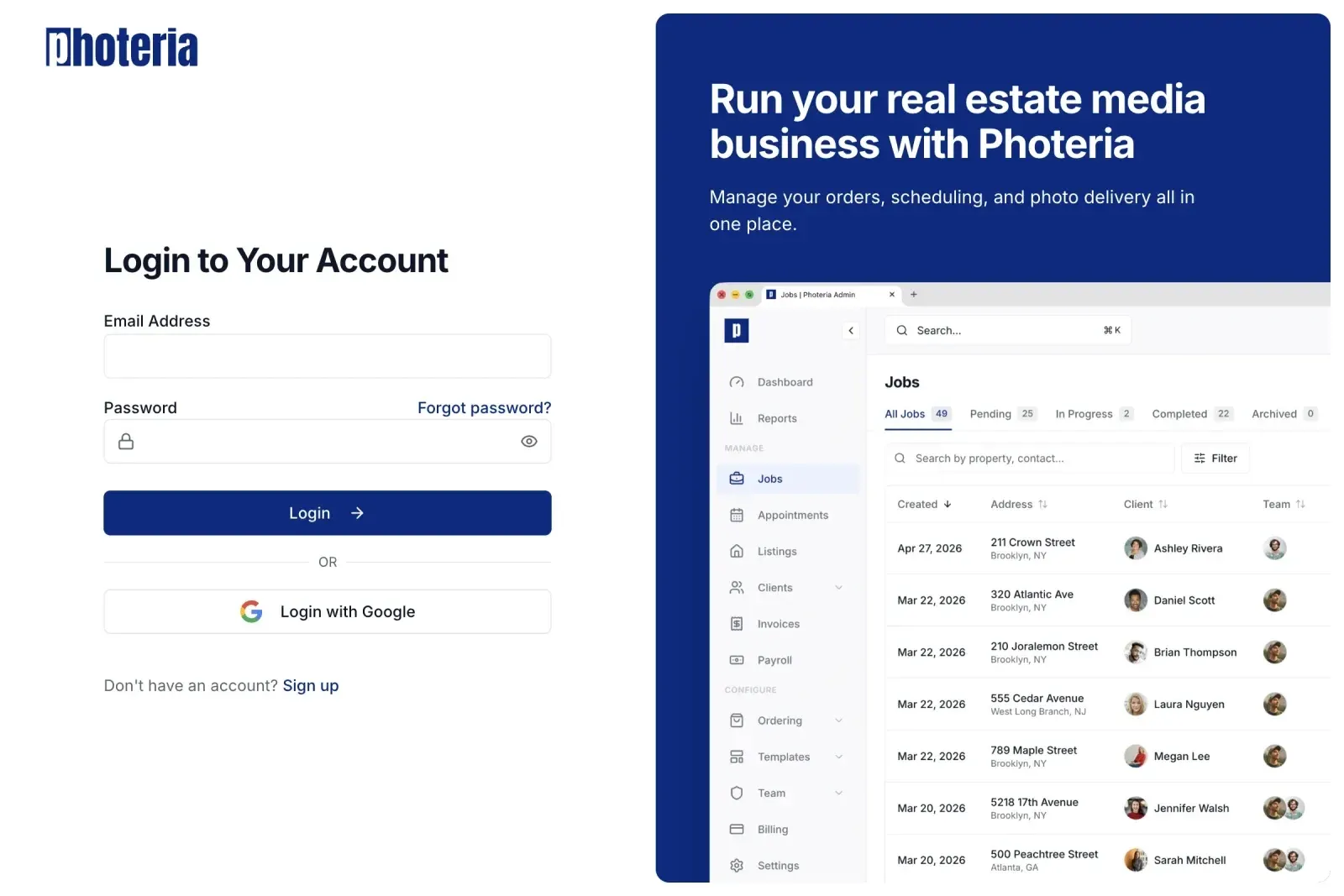
- On the login page, enter your Email Address and Password.
- Click Login.
You can also click Login with Google if your account uses Google sign-in.
Resetting your password
- On the login page, click Forgot password?
- Enter your account email address.
- Follow the password reset link sent to your email.
Next steps
- Using and Customizing the Dashboard - get oriented.
- Your First Job - create your first photography job.