Building and publishing a property website
Build a property website from your listing's photos, videos, tours, and details.
Written By David Dayan
Build a property website from your listing's photos, videos, tours, and details. Choose a theme, customize the page, and publish it when it is ready to share.
Open the Website Editor
Open Listings and select the listing.
Under Marketing, find Property Website and select Edit.

Choose a theme
Open Design and select the current theme.
Choose a theme from All themes and select Continue.
Preview it with your listing. Turn on Use brokerage colors if you want to keep the brokerage's colors.
Select Use this theme.
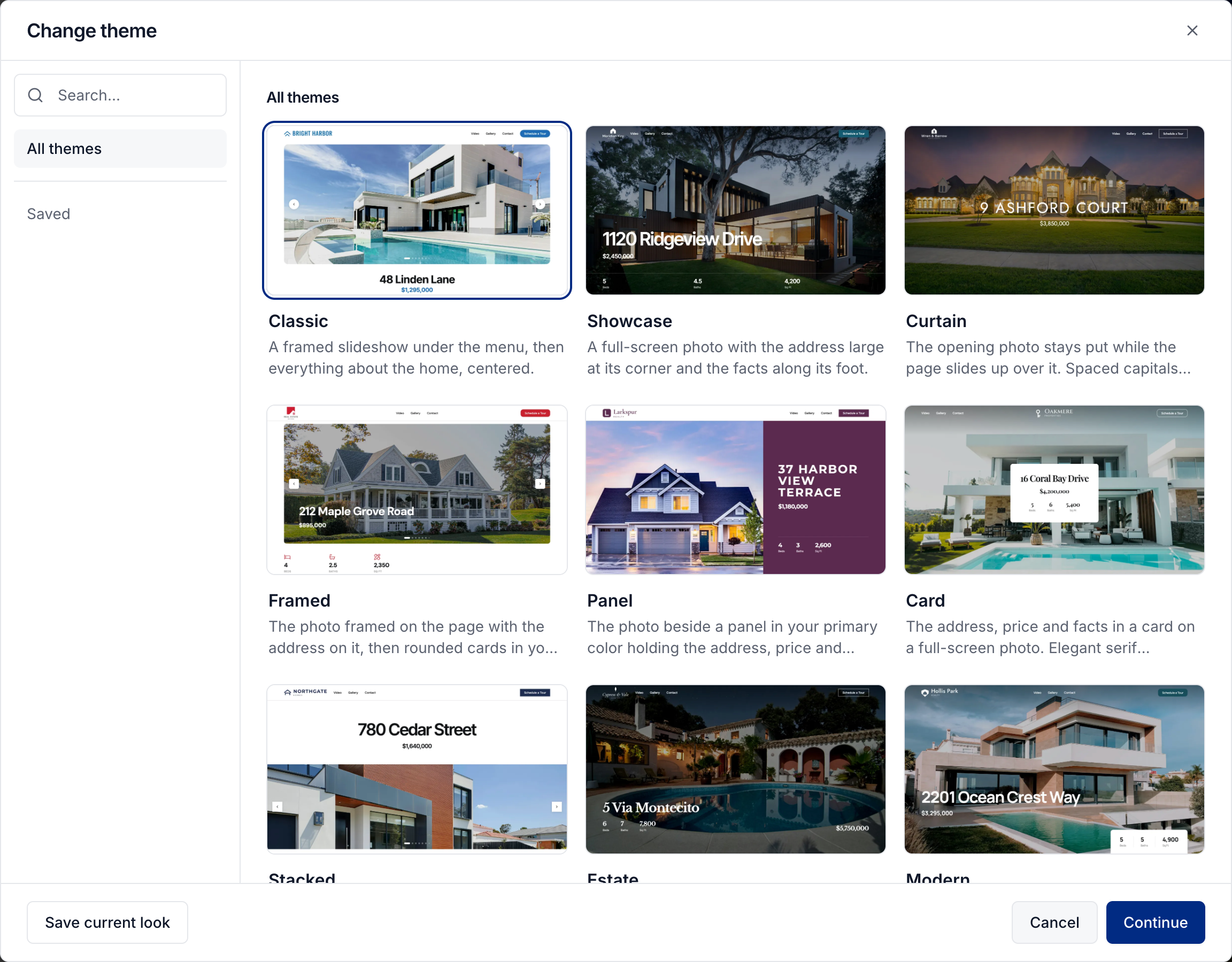
A theme changes the page's styling and section layouts. You can adjust those choices afterward.
To reuse your own design, open the theme gallery and select Save current look. Enter a Theme name and select Save theme. On another listing, open Saved in the theme gallery to apply it.
Adjust the design
Use Design to change colors, fonts, buttons, corners, spacing, and animation. The preview updates as you work.
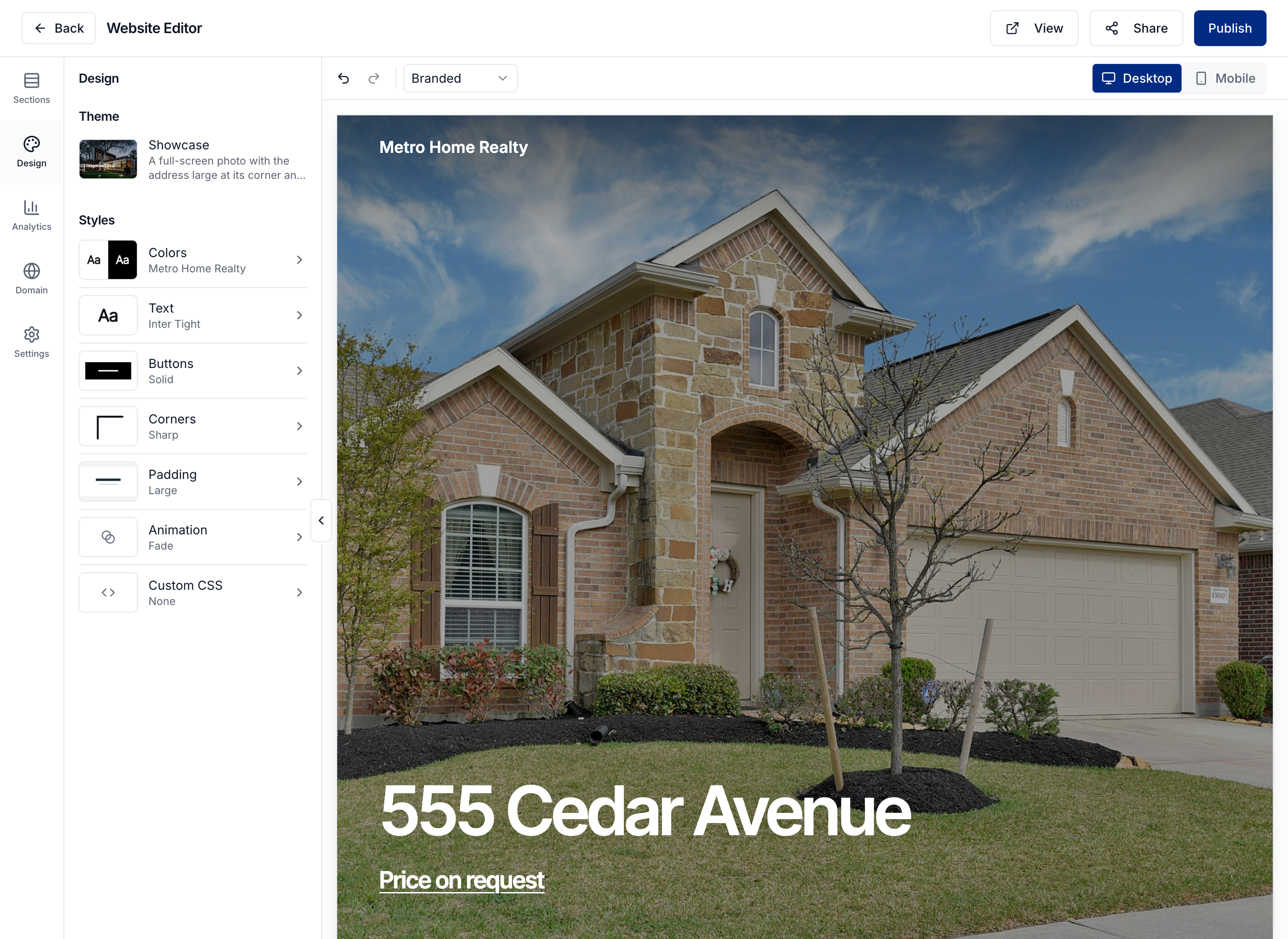
Check Desktop and Mobile before publishing. Use the Branded selector to check the MLS-friendly version too.
Arrange and edit sections
Open Sections to build the page:
Drag a section's handle to change its position.
Select its eye control to show or hide it.
Select its edit control to change its content and style.
Select Add section to add content such as amenities, open houses, downloadable files, or your own text and photo.
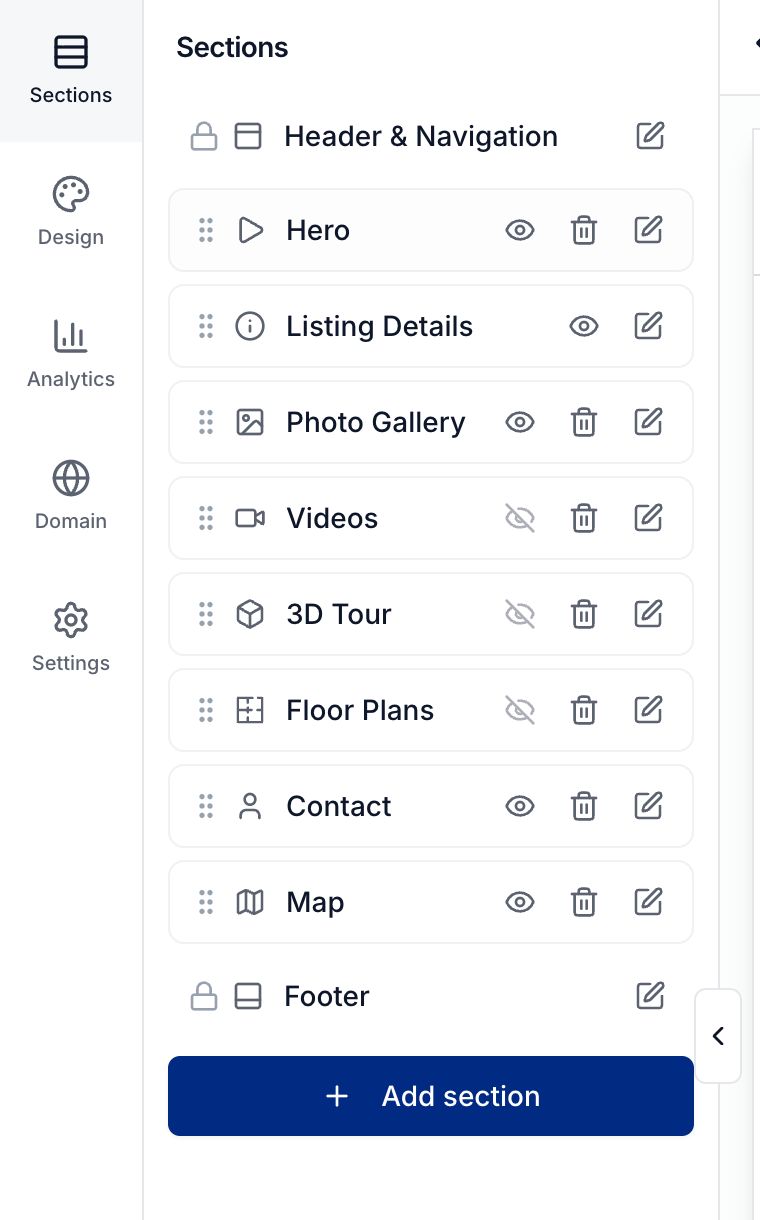
For example, edit Hero to choose its layout, title, price, and opening images. Edit Listing Details to decide which property facts appear. Sections without content stay hidden on the published website until you add the relevant media or details to the listing.
Customize the header and footer
In Sections, select the edit control beside Header & Navigation or Footer.
For the header, use Content to show the Schedule Tour button. Use Style to choose the header layout, background, and logo treatment. To add a section to the website menu, edit that section and turn on Navigation link.

For the footer, use Content to choose the logos and edit the disclaimer. Use Style to adjust its appearance. The header and footer stay at the top and bottom of the page.
Add a custom section
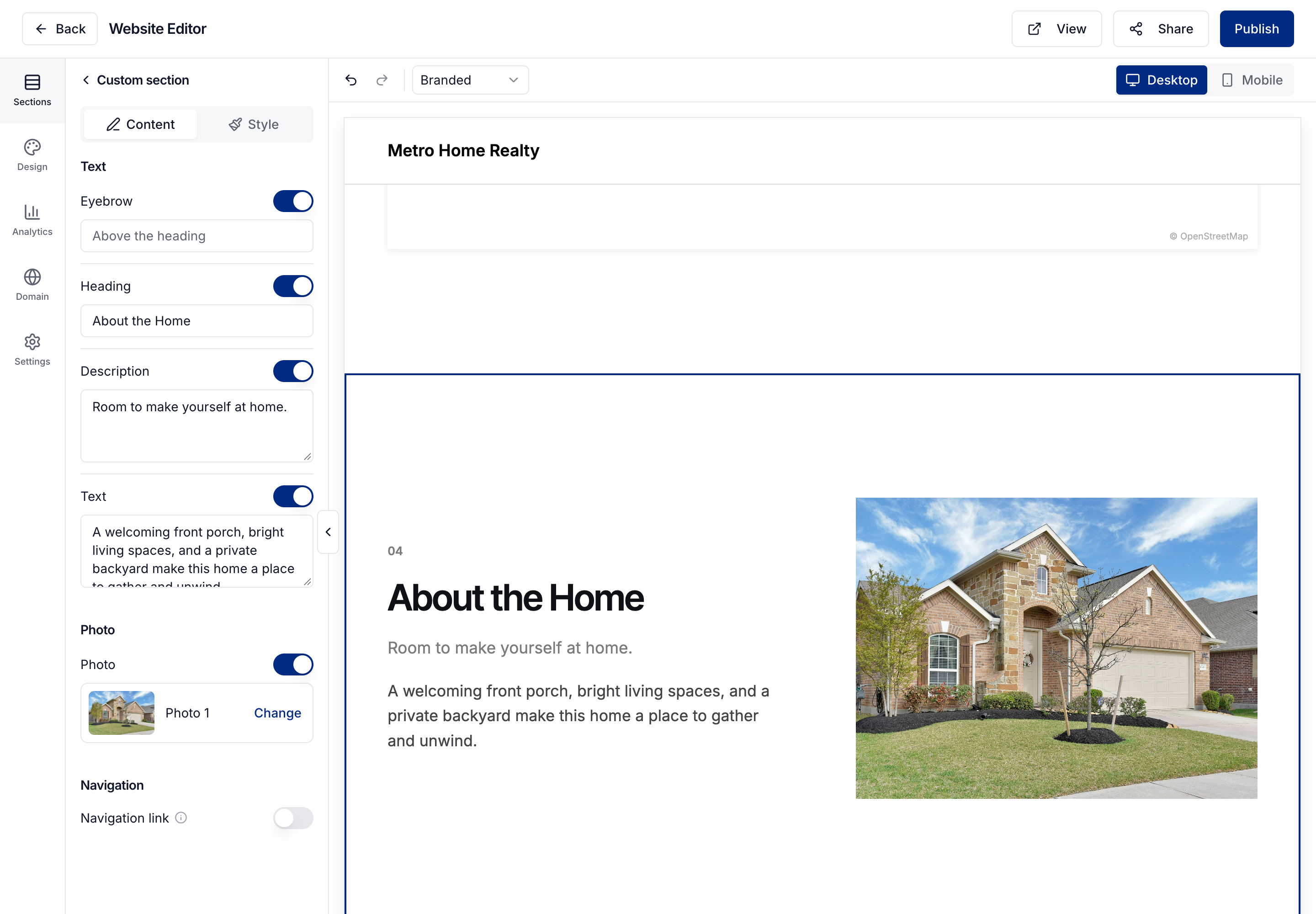
Use a Custom section for content that does not fit the standard sections, such as a neighborhood introduction or a description of a standout room.
Select Add section, choose Custom section, and select Add section.
Open the new section. Under Content, enter your heading and text, then choose a listing photo with Change.
Open Style to choose the layout, photo placement, and background.
Turn on Navigation link if visitors should be able to jump to it from the menu.
Show Price on request
Open Settings and turn on Price on request to replace the displayed price with a link to the contact form. This lets visitors ask the agent for pricing.
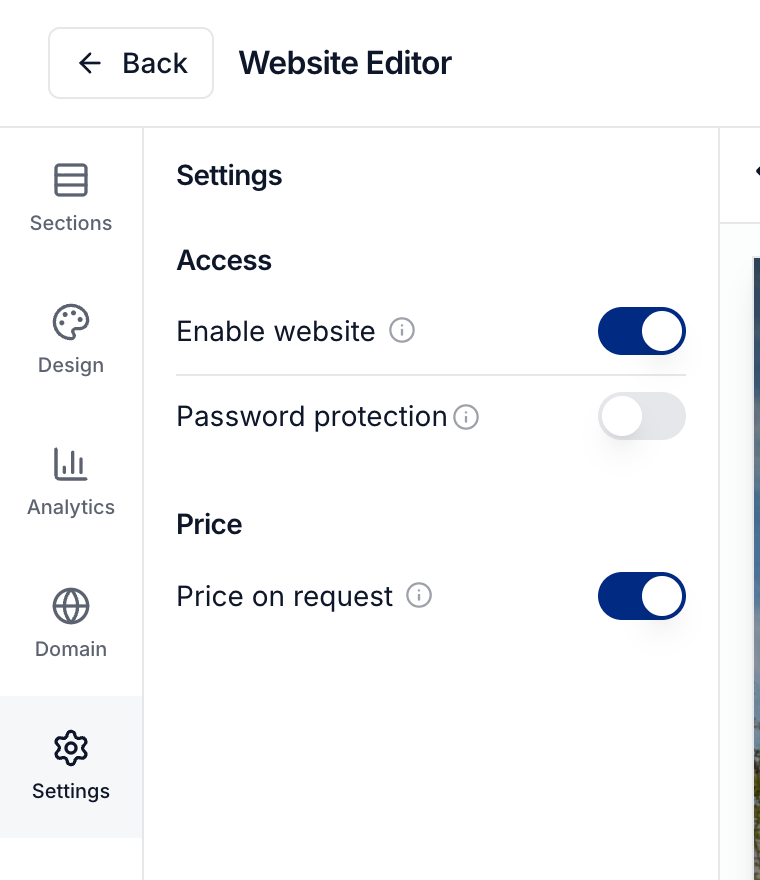
You can also turn the website on or off with Enable website and restrict access with Password protection.
Publish and share
Select Publish to save your editor changes to the live website. Leaving without publishing discards those changes.
After publishing, select View to open the website or Share to copy its link. To use a custom address, open Domain and follow Custom listing domains.
Was this helpful?
Still need help? Share an idea