Setting up team compensation
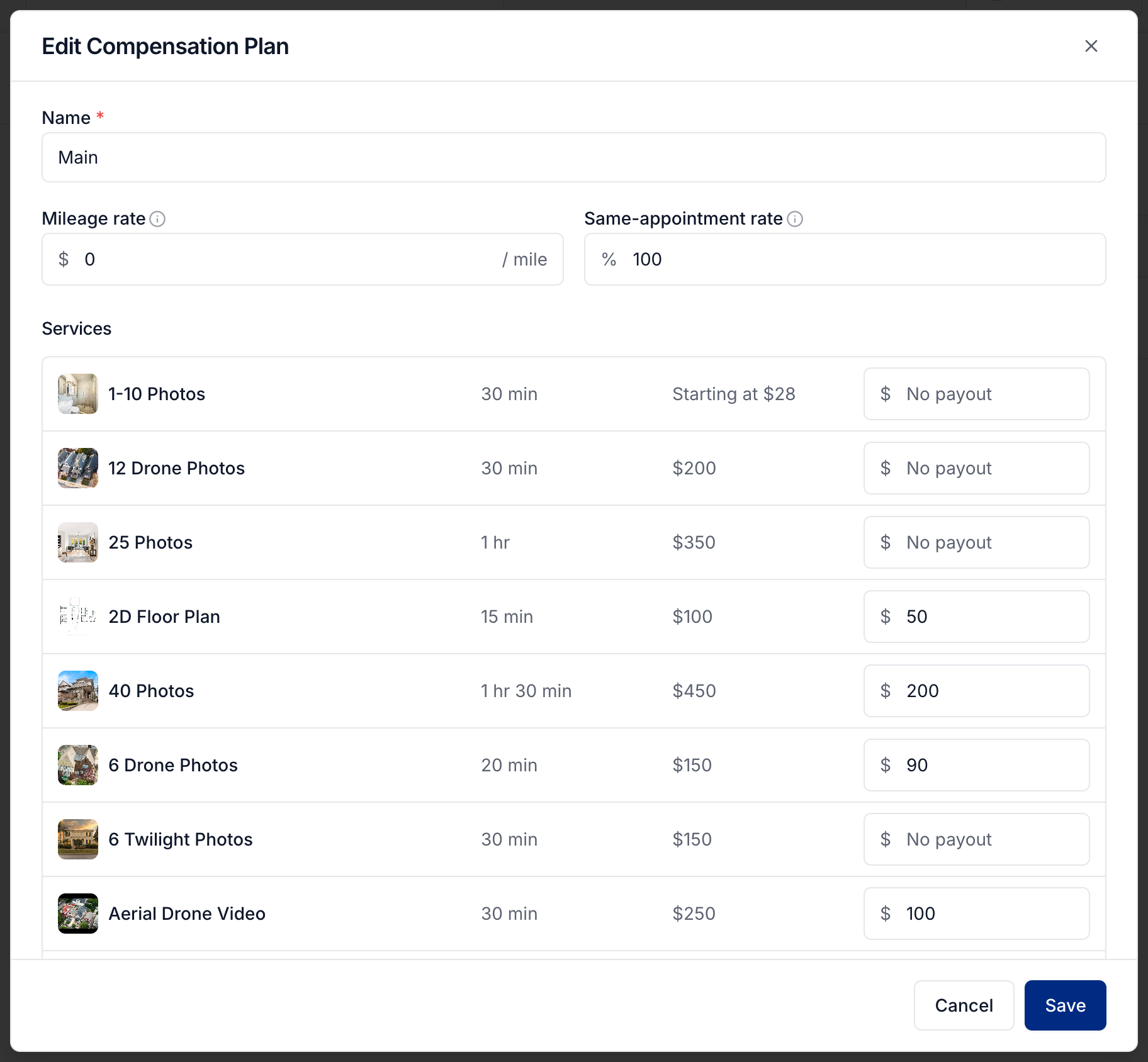
Compensation plans define how your team gets paid. A plan bundles per-service payout rates, a mileage rate, and a same-appointment rate. Build a plan once, assign it to as many members as you like, and those rates feed Payroll so payouts calculate themselves. Find plans under
Written By David Dayan
Create a compensation plan to calculate what team members earn for completed services and appointment mileage. You can assign the same plan to several people and review their earnings in Payroll.
Create a plan
Open Team → Compensation and select Add Plan.
Give the plan a Name.
Set the Mileage rate paid per mile driven for an appointment.
Set the Same-appointment rate, the percentage of the payout earned for extra services on the same visit. Use 100% to pay the full amount for those services.
Enter a payout for each service. Leave it blank when that service has no payout. For services priced by square footage, enter the payout for each tier.
Select Save.
Assign a plan to a team member
Open Team → Members and edit the member.
Choose their Compensation Plan.
Set their Preferred Pay Cadence and Payout Method.
Select Save Changes.
You can also assign a plan when inviting a new team member.
Change or remove a plan
Use the plan's edit action to change its rates. Before deleting a plan, assign a replacement to any members who still need one. Deleting a plan leaves those members without a compensation plan.
You need Team: Manage to build and assign plans.
Was this helpful?
Still need help? Share an idea