Setting up your email sender
Choose the name clients see on your emails and where their replies go.
Written By David Dayan
Choose the name clients see on your emails and where their replies go. You can also verify your business domain to send from an address such as notifications@yourcompany.com.
Set your sender and reply address
Open Settings → Email.
Under Sender, enter your Sender name and Reply-to email.
Select Save. Use Send test email to check the result in your own inbox.
Leave the name blank to use your company name. Leave the reply address blank to use the company email under Settings → General.
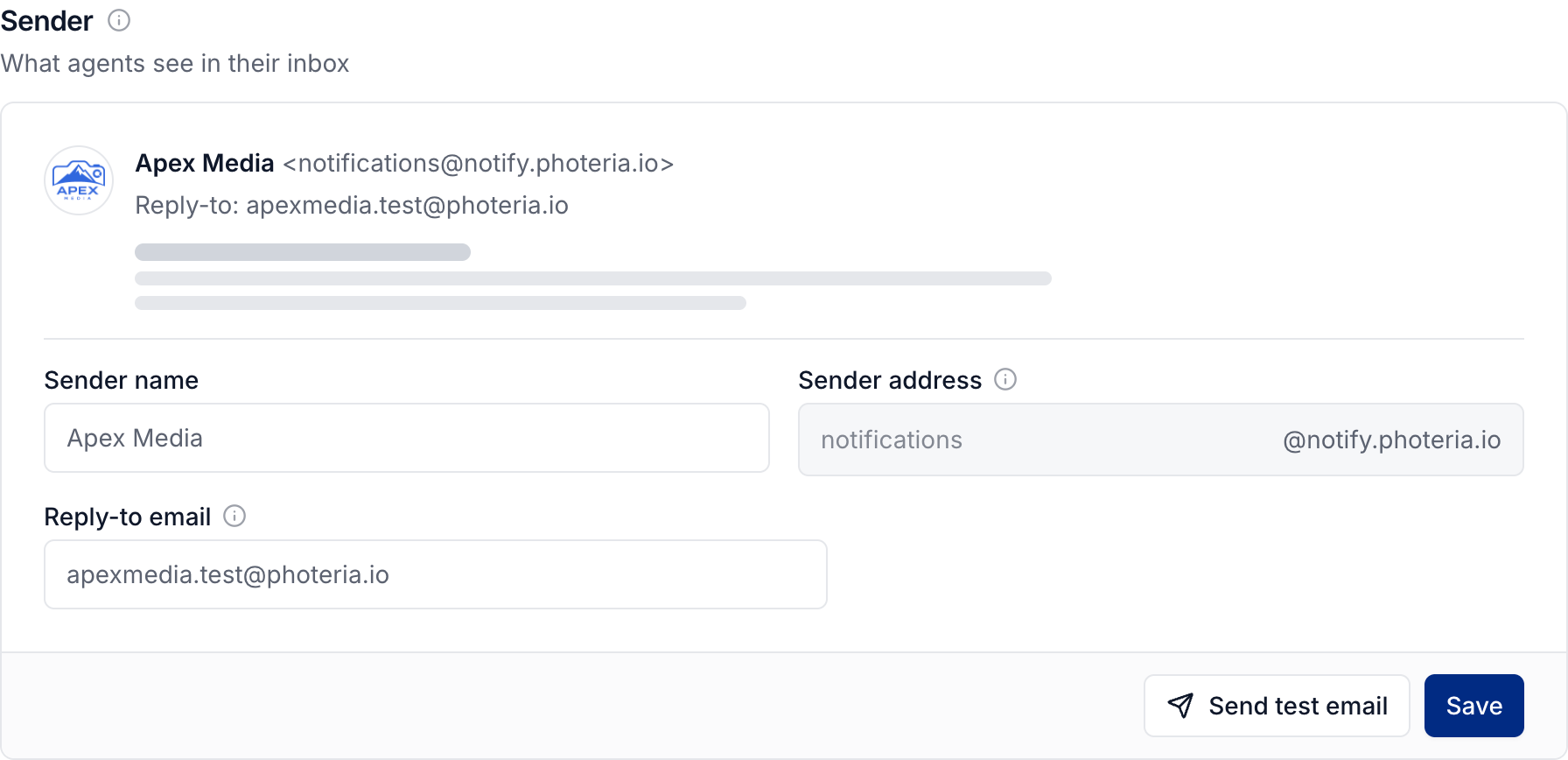
A message with its own sender or reply address under Settings → Notifications uses that override instead of these defaults.
Send from your own domain
You need access to your domain's DNS settings, usually through your domain registrar.
Under Email Sending Domain, enter your root domain, such as
yourcompany.com, and select Add Domain.Add the DNS records Photeria provides at your registrar. Copy each name and value exactly. These include DKIM and DMARC TXT records and a Return-Path CNAME record.
Return to Photeria and select Verify DNS after the records have updated.
Once the domain is verified and sending is active, return to Sender. Enter the part before the @ in Sender address, then select Save.
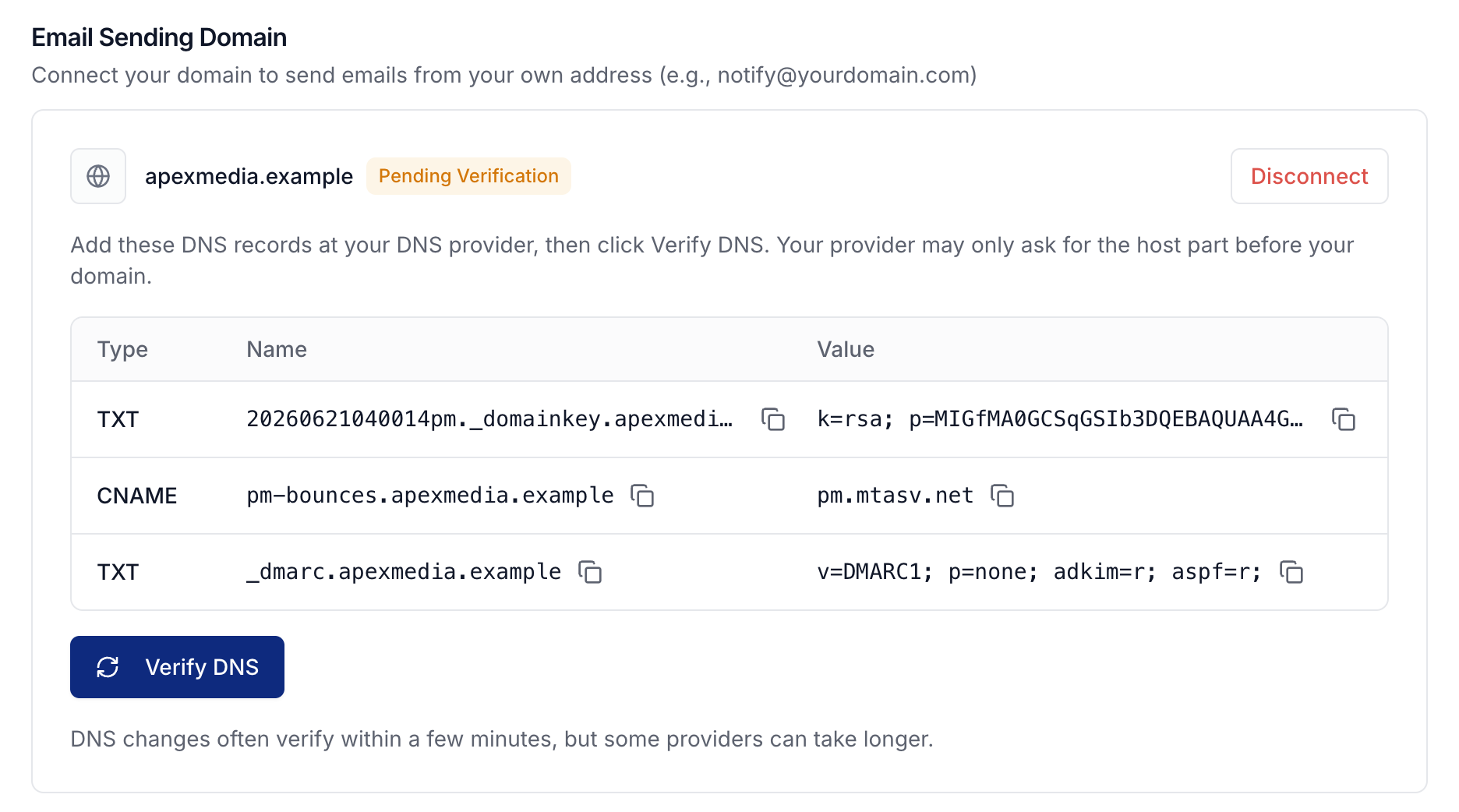
Until your own domain is ready, Photeria uses notifications@notify.photeria.io. Your sender name and reply address still identify your business.
Keep the domain working
Leave the DNS records in place after verification. If verification fails, check whether your registrar automatically appends your domain to the record name before entering it again.
If sending is paused because of delivery problems, review the affected email addresses and contact support. See resolving an email delivery problem.
Use Disconnect to remove the sending domain. Your emails then use Photeria's sending address.
To change the email header and footer, see Branding your account.
Was this helpful?
Still need help? Share an idea