Managing job tasks
Keep editing, delivery, and other follow-up work with the job it belongs to.
Written By David Dayan
Keep editing, delivery, and other follow-up work with the job it belongs to. A job can have tasks created by workflows and tasks you add for one-off requests.
Add work to a job
Open the job under Jobs.
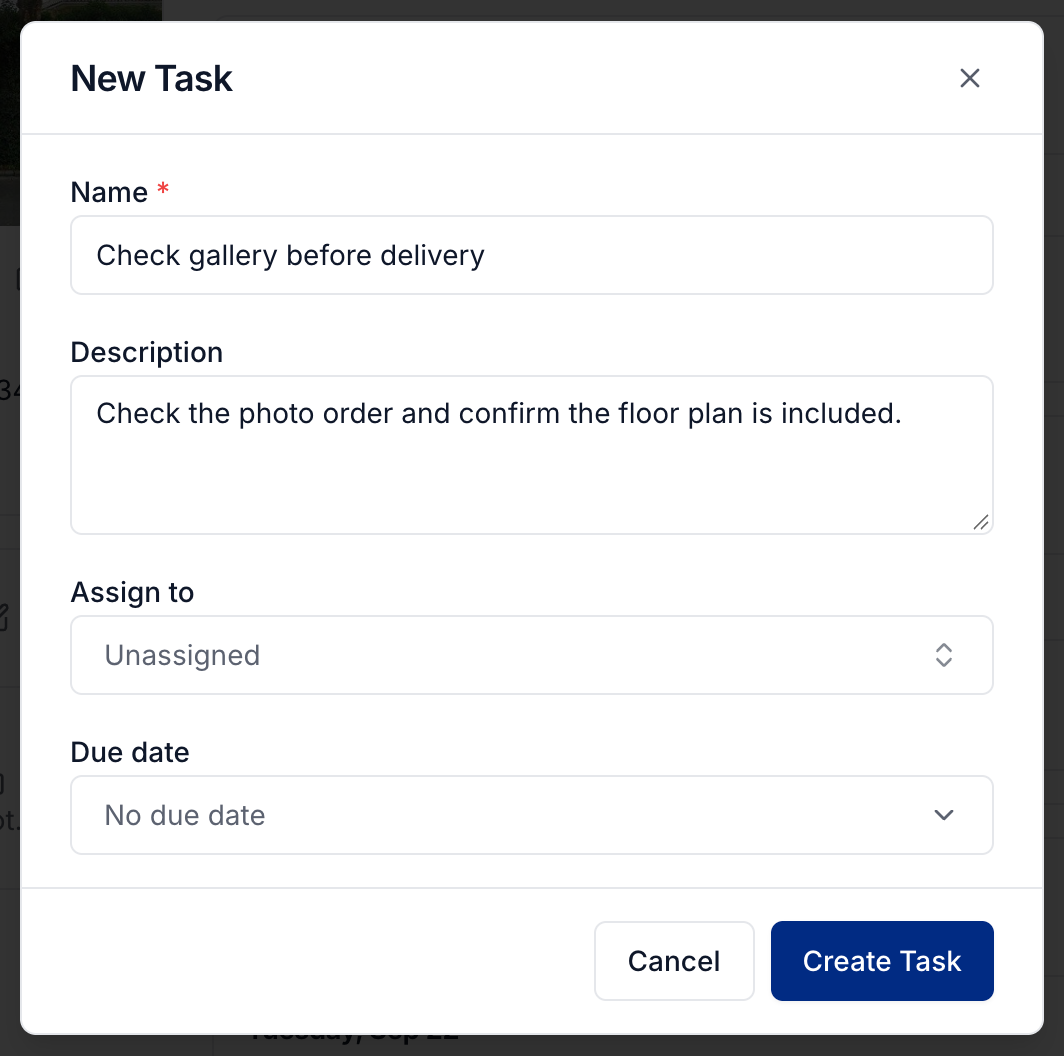
Under Tasks, select New task.
Enter the task's Name and any instructions under Description.
Choose a team member under Assign to and set the Due date.
Click Create Task. The task belongs to this job automatically.
Complete work
Check off a task when it is finished. Clear its checkbox to reopen it.
Open a task to change its instructions, assignment, or deadline, then select Save Changes. You can also select the assignee or due date directly on the task. Drag tasks within a group to change their order.
For work across several jobs, open Tasks in the sidebar. See Managing work on the Tasks page.
Create recurring job tasks automatically
Use workflows for work that should be created whenever a matching service is added. Use a Create task step to set the task's instructions, deadline, and assignment.
For example, an Edit Photos workflow can create one task for the entire job and make it due the day after the last appointment.
Was this helpful?
Still need help? Share an idea