Setting up square footage pricing
Use square footage pricing to charge by property size. You can charge one rate per square foot, set a flat price for each size range, or add charges as a property reaches higher tiers. Appointment duration can follow property size too.
Written By David Dayan
Use square footage pricing to charge by property size. You can charge one rate per square foot, set a flat price for each size range, or add charges as a property reaches higher tiers. Appointment duration can follow property size too.
Choose a pricing model
Open Ordering → Services and add or edit a service.
Under Pricing Type, choose Square Footage.
Choose a Pricing Model based on how you quote the work.
Use Per Sq Ft for one rate across the whole property. For example, $0.10 per square foot makes a 2,500-square-foot property cost $250.
Use Volume when the property's size should select one price range. Use Graduated when you want to charge a base amount and then add charges for extra square footage.
Set a flat price for each size range
Select Volume.
Click Add Tier for each additional range.
Set Up to for each range. The next From value fills in automatically, and the final tier covers all larger properties.
Set Per sq ft to 0 and enter the price for that range under Flat fee.
For example, charge $150 through 1,500 square feet and $250 above that. A 2,500-square-foot property costs $250 because only the matching tier applies.
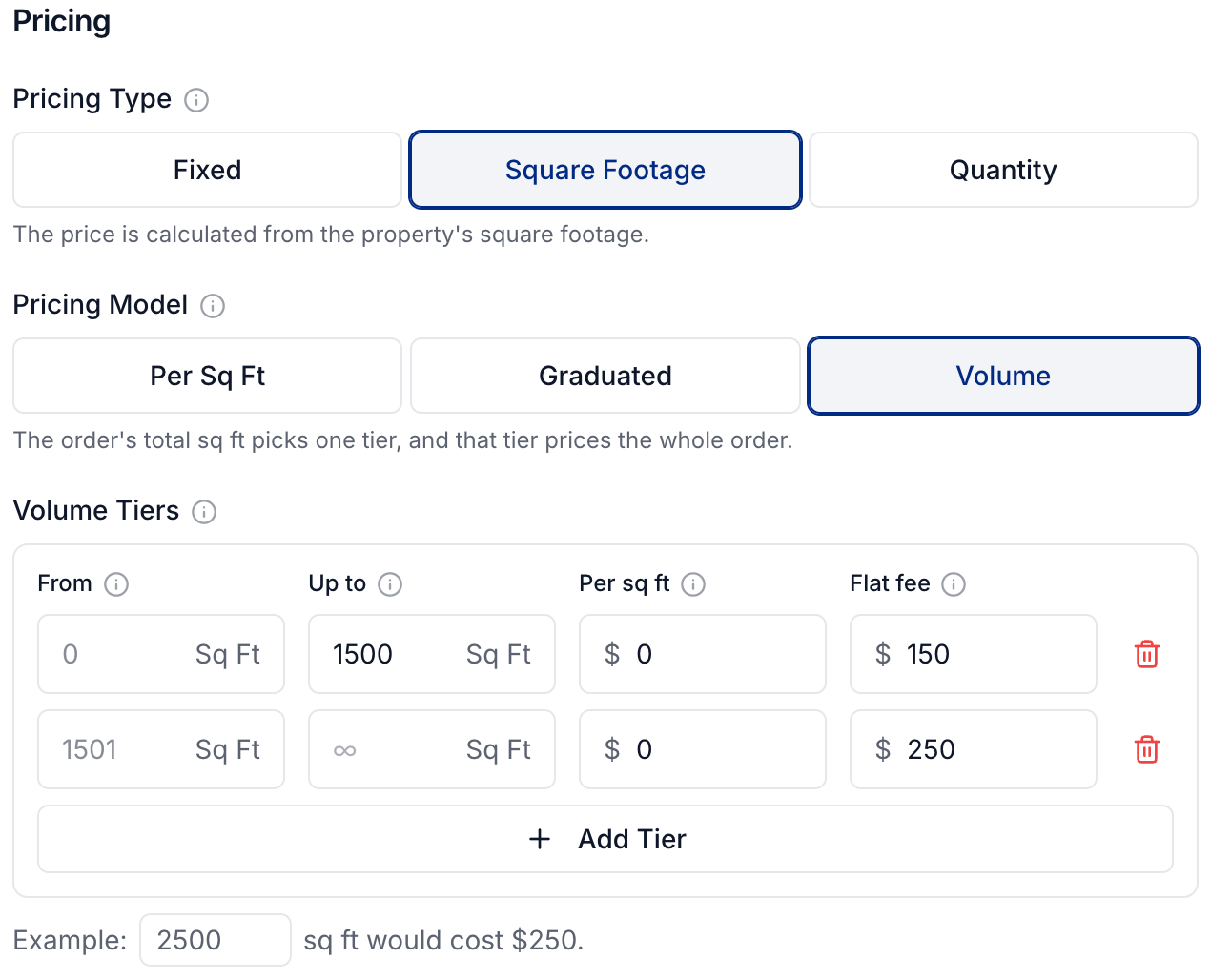
You can also combine a per-square-foot rate with a flat fee. With Volume, the selected rate applies to every square foot in the property, then that tier's flat fee is added.
Charge a base price plus extra square footage
Select Graduated and add two tiers.
In the first tier, set Up to to 1500, Per sq ft to 0, and Flat fee to 150.
In the final tier, set Per sq ft to 0.10 and Flat fee to 0.
A 2,500-square-foot property costs $250. The first tier contributes $150, and the remaining 1,000 square feet cost $100.
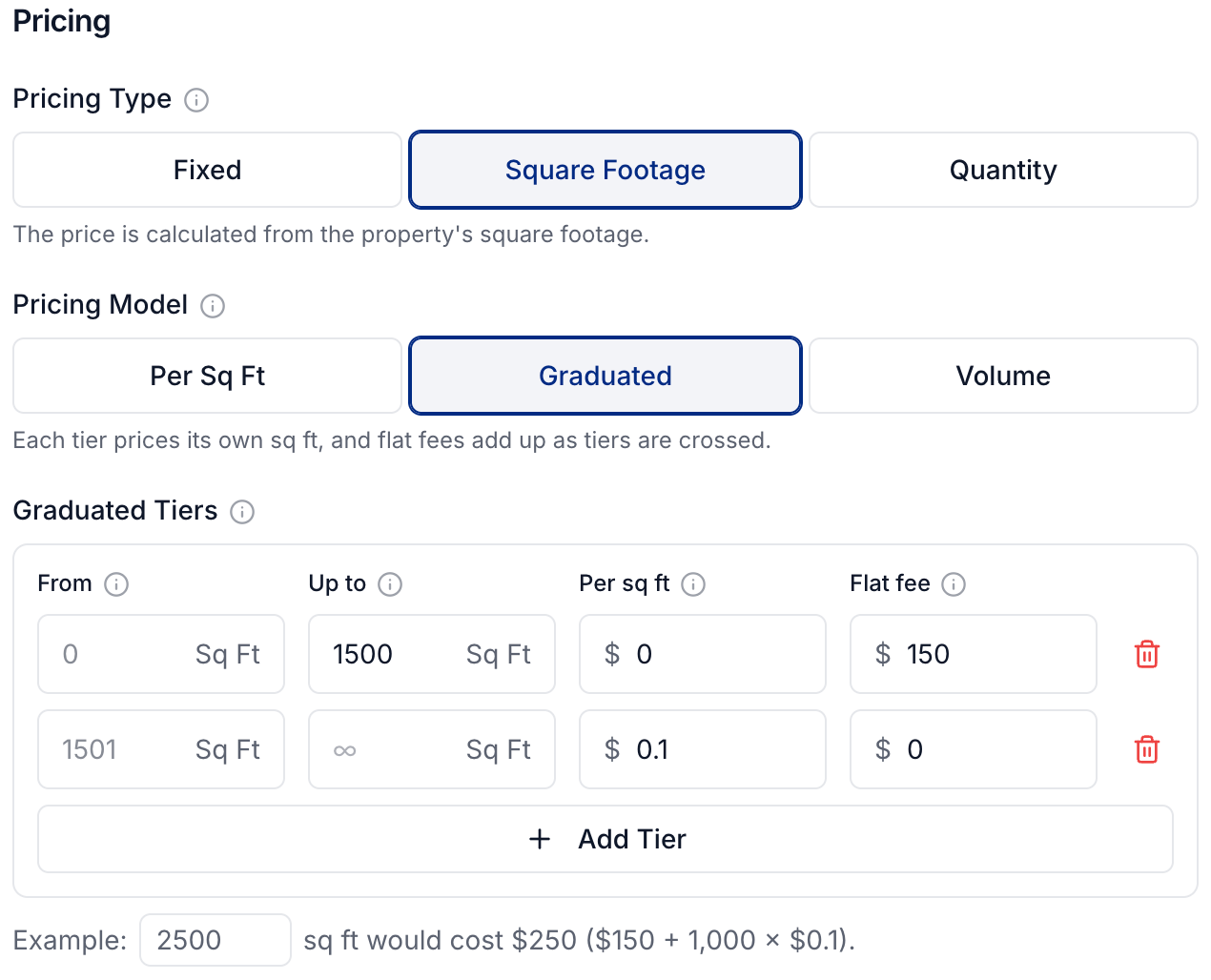
With Graduated, each tier adds its own charges. A higher tier's Flat fee is an additional amount, so enter only the extra fee for reaching that tier.
Reserve more time for larger properties
Keep Requires appointment on.
Under Duration Type, choose Square Footage.
Choose Volume to set one appointment length for each size range. Set Per sq ft to 0 and enter minutes under Flat time.
Use Example to check the duration for a sample property size.
For example, reserve 60 minutes through 1,500 square feet and 90 minutes for larger properties.
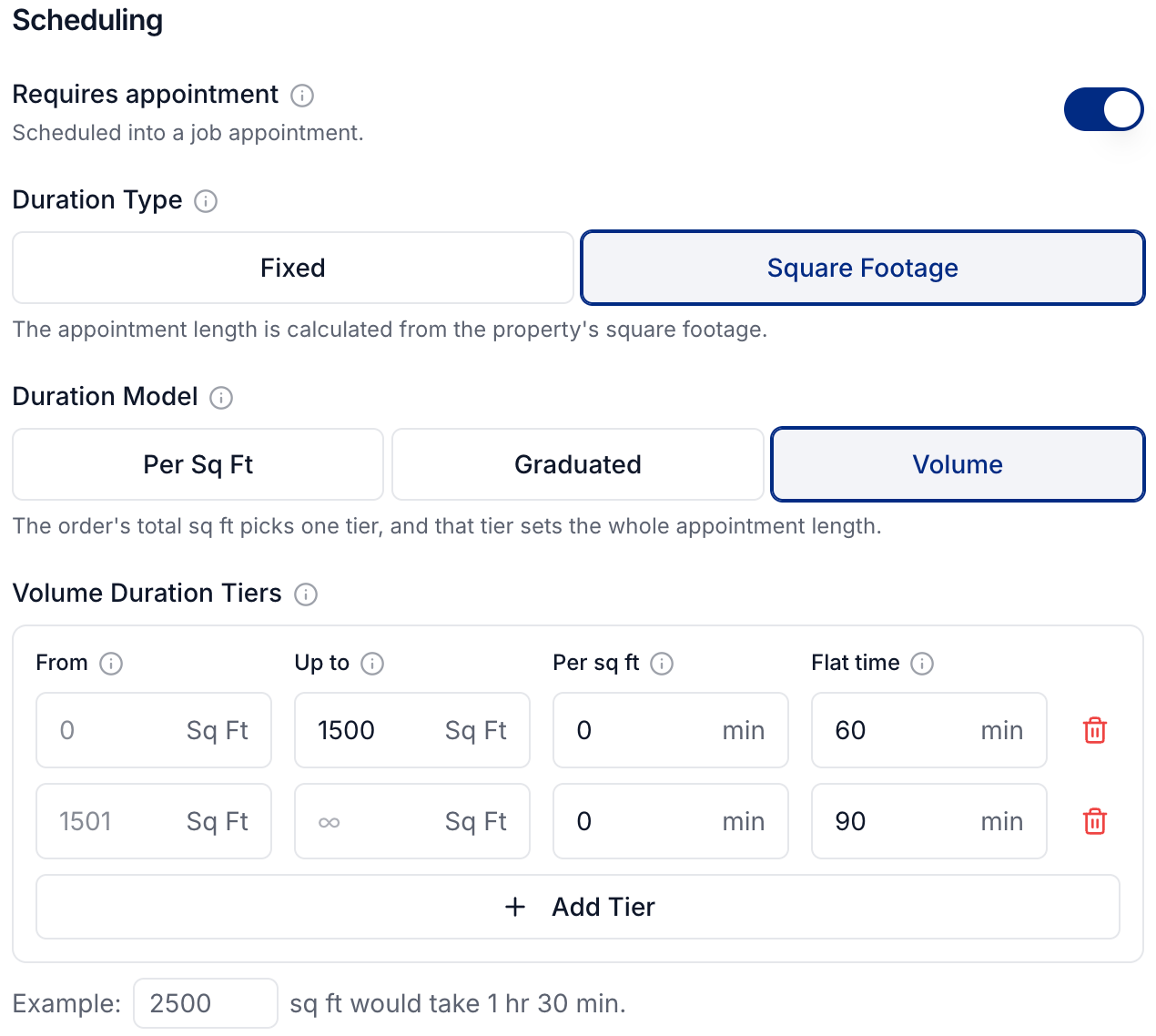
You can also use Per Sq Ft for a steady number of minutes per square foot, or Graduated to add time across tiers. Pricing and duration are separate, so their ranges can differ.
Check and save
Enter sample sizes under Example, including sizes on either side of each tier boundary. Check both the price and duration, then click Create for a new service or Update for an existing one.
Clients enter square footage during ordering, and Photeria uses it to calculate the service price and appointment length. For the rest of service setup, see Setting up services.
Was this helpful?
Still need help? Share an idea