Downloading and sharing listing media
Use a listing's Media page to download delivered files, choose photo quality, add your logo, and share a preview with someone else.
Written By David Dayan
Use a listing's Media page to download delivered files, choose photo quality, add your logo, and share a preview with someone else.
Open your media
Open Listings in your client portal and choose the property.
Under Media, select Manage media or Open, depending on your access.
Choose the type of media you need. Tabs appear for the content available on that listing.
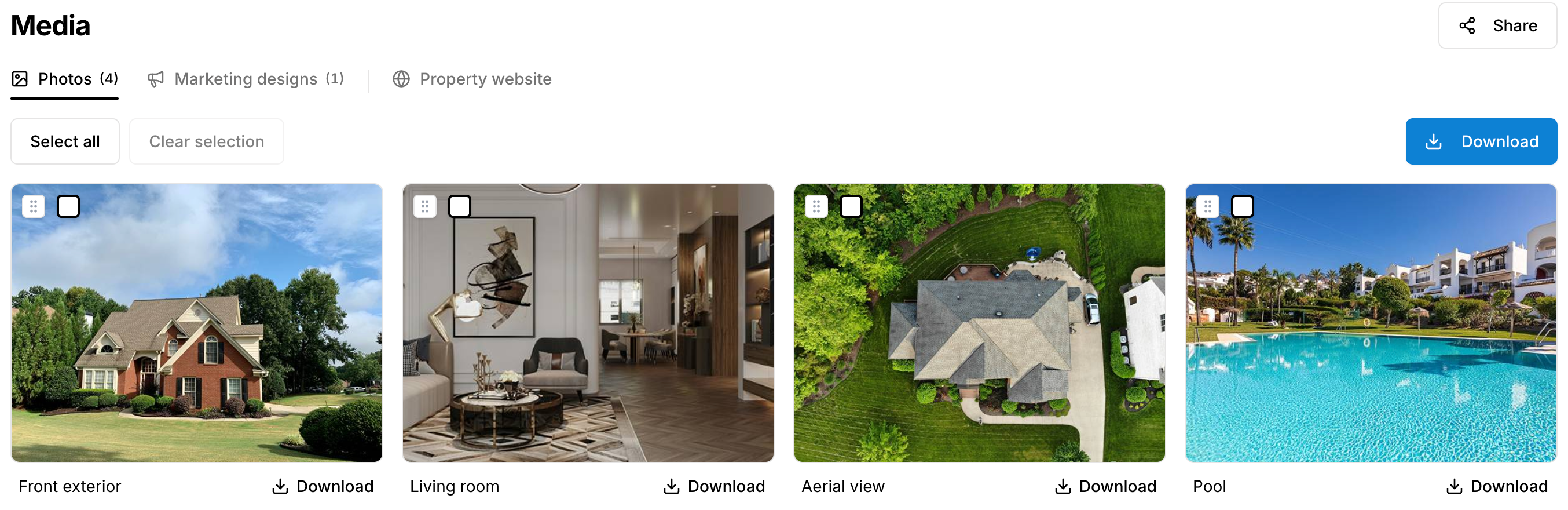
Download photos
Select the photos you want, then select Download. To download every photo in the current tab, select Download without making a selection.
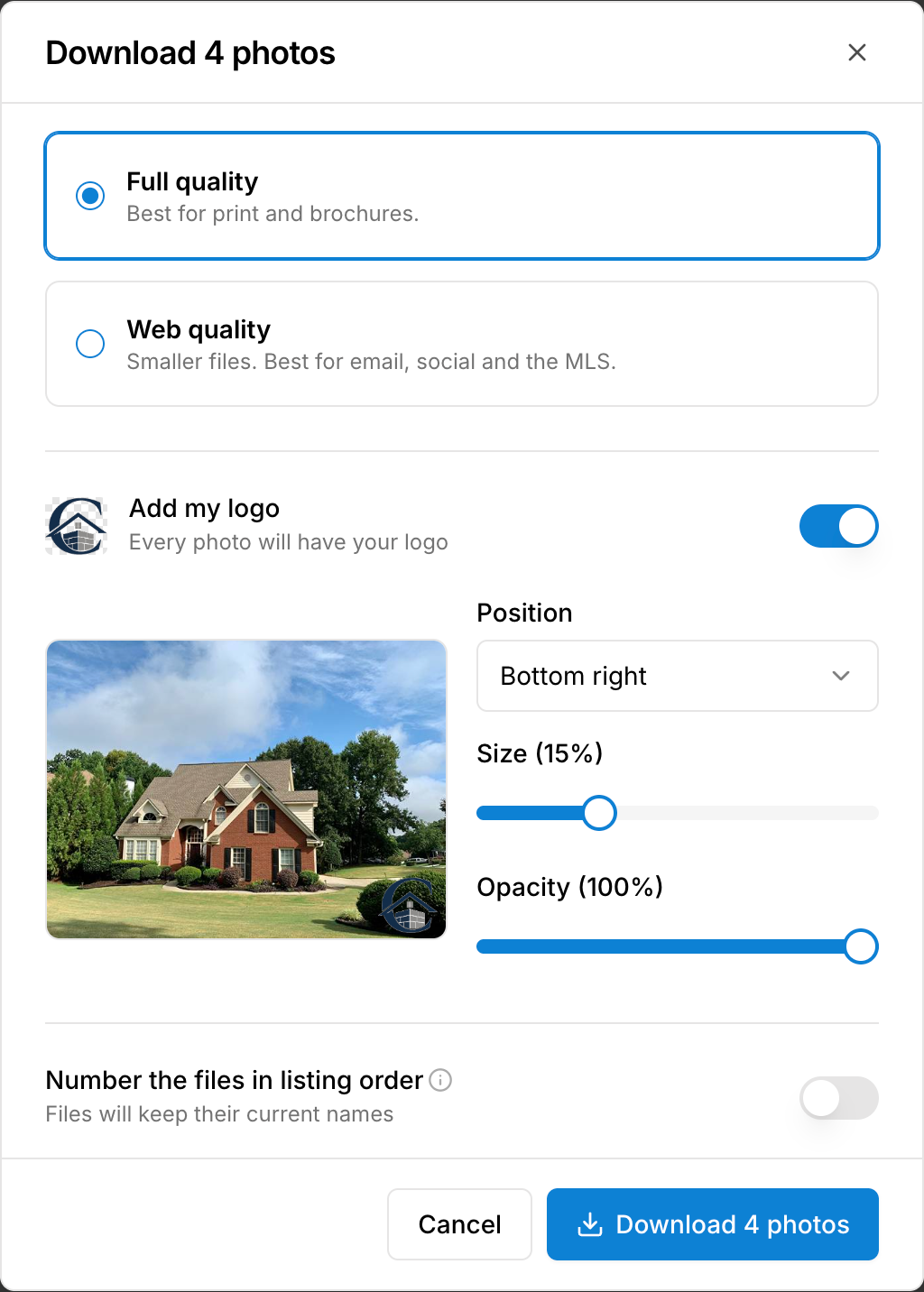
Choose Full quality for print or Web quality for smaller files suited to email, social media, and MLS uploads.
Choose any logo and file-numbering options you need.
Select Download photos (with the selected photo count) to start the download.
You can also use Download beneath one photo. Multiple photos download together as a ZIP file.
On an iPhone or iPad, Save or share photo opens the device sharing options. Choose Save Image to put it in Photos. Use Download file when you want a file download instead.
Add your logo
If your business has a logo or watermark on file, turn on Add my logo or Add my watermark in the download window. Set its Position, Size, and Opacity, using the preview to check placement.
Keep photos in order
Turn on Number the files in listing order to add 01, 02, 03, and so on to the filenames. This helps preserve your chosen order when you upload to a site that sorts files by name.
Rename and arrange media
If your account can manage the listing's media, select an item's name to rename it. Press Enter or Tab to save and move to the next name. Drag items to change their order.
These changes affect the listing's media, so arrange the files before downloading a numbered set.
Download other files
Open Floor plans, Video, Files, or Marketing designs to use the download options for that content. Uploaded videos can be downloaded when available. Hosted videos and virtual tours may open in their player instead.
Unlock unpaid media
If Payment required appears, you can view previews, but full-resolution downloads and media changes stay locked. Open View invoice or use the payment button when available to pay the remaining balance. See Paying invoices.

Share a preview
Open Share on the paid listing's Media page.
Turn View only on when the recipient should only look at the media.
Copy the link and send it to the recipient.
A view-only link does not offer downloads, selection, renaming, or reordering. Turn View only off to copy the regular Media page link. The recipient's account access and the listing's payment requirements still determine what they can do there.
Use the Property website tab to open the website separately from the media download page.
Was this helpful?
Still need help? Share an idea