Saving custom views
Written By David Dayan
Save the filters, sorting, and layout you use regularly so you can return to the same work without setting them up again. Custom views are available on Jobs, Listings, Agents, Invoices, and Tasks.
Views are shared across your organization. Changes to a saved view affect the other team members who use it.
Create a view
Open the page and select Main.
Open Show filters, then Add filter. For example, on Jobs, choose Payment and Unpaid.
Choose the sorting and layout you want, where available. You can save a Listings view as cards or a Tasks view as a board.
Select Save as new view, or the plus button beside the view tabs.
Open the new view's three-dot menu and select Rename. Enter a useful name, such as Unpaid jobs, and press Enter.
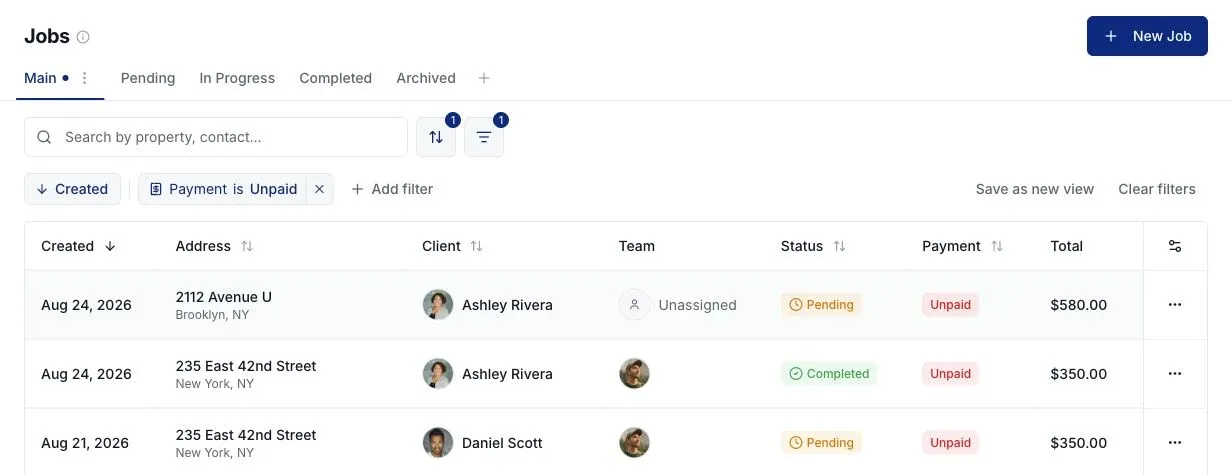
Search text is not part of a saved view. Use filters for the conditions you want the view to remember.
Update a saved view
Select its tab, change the filters, sorting, or layout, then select Save view. You can also open the view's three-dot menu and select Save changes.
The dot beside the view name means you have unsaved changes. Choose Discard changes from its menu to return to the saved settings.
Organize your views
Use the selected view's three-dot menu to Rename, Duplicate, Reorder, or Delete it. You can also drag view tabs to change their order.
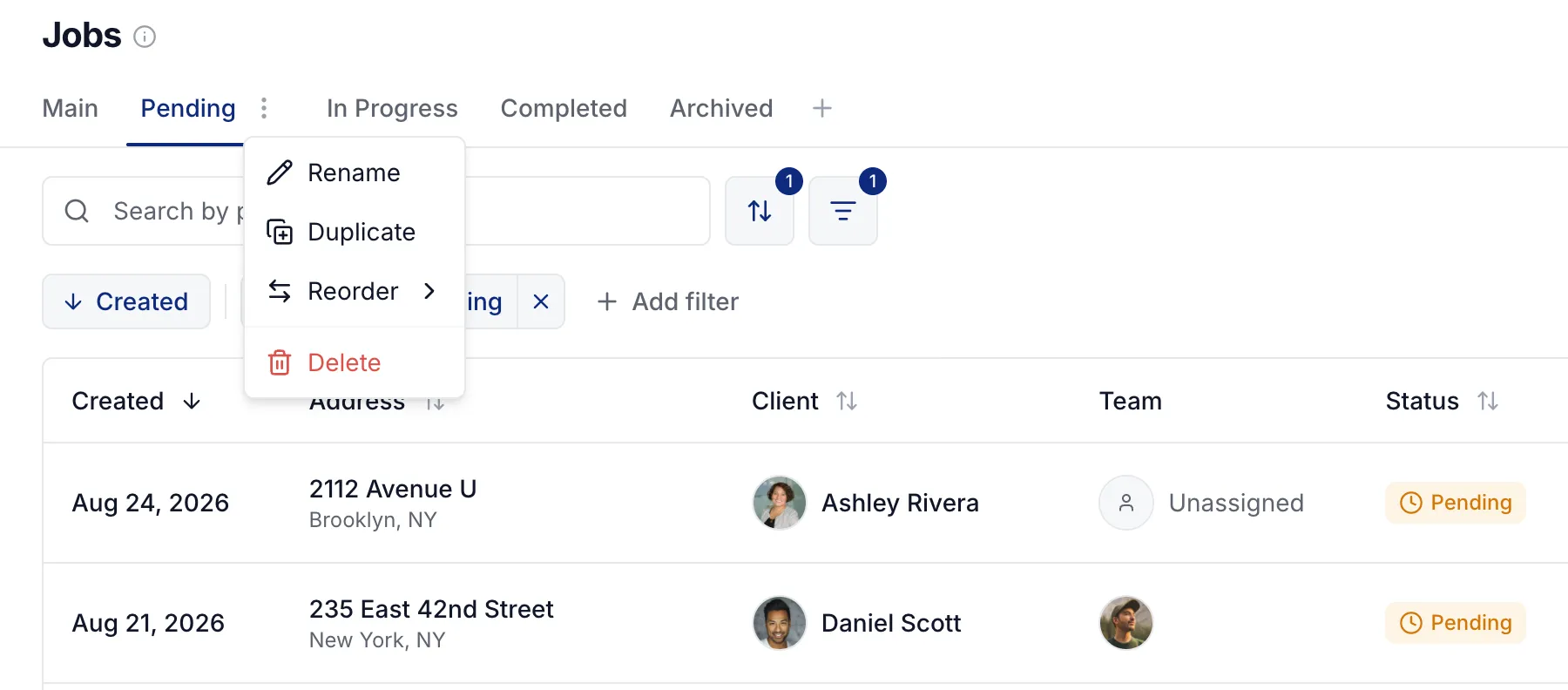
Deleting a view removes that saved setup, not the jobs, clients, invoices, listings, or tasks it showed. Each page supports up to 10 saved views in addition to Main. Main stays in place and cannot be renamed or deleted.
Was this helpful?
Still need help? Share an idea