Customizing property website sections
Choose what appears on a property's website and arrange it for the listing.
Written By David Dayan
Choose what appears on a property's website and arrange it for the listing. Website sections control the public page; upload and manage the listing's media from the listing itself.
Open the section controls
Open the listing under Listings.
Under Property Website, select Edit.
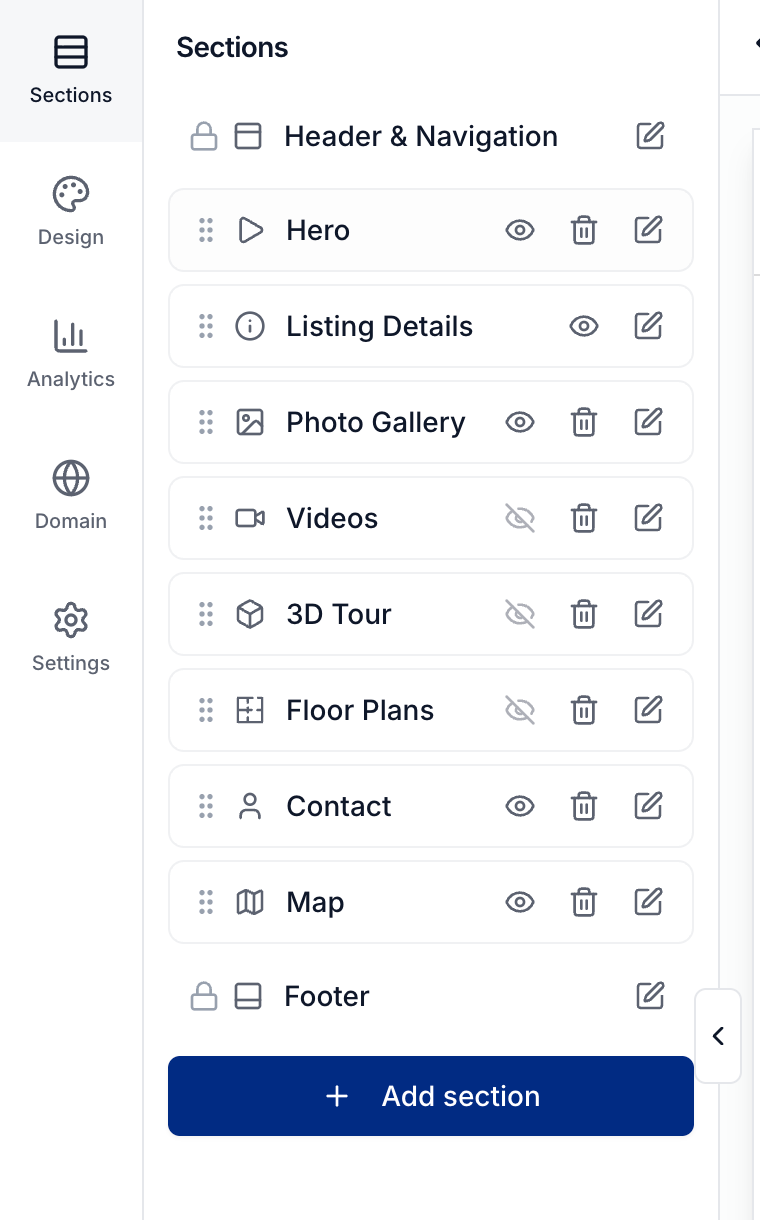
Open Sections in the Website Editor.
Arrange the page
Drag a section's handle to change its position. Use the eye control to hide a section while keeping its content. Header & Navigation and Footer stay at the top and bottom.
Select Add section to choose content to include, such as amenities, open houses, or downloadable files. Choose Custom section when you want to write your own content and pair it with a listing photo.
A media section with no content stays hidden on the published website until you add that content to the listing.
Change a section's content and style
Select the section's edit control. Use Content for its text, media, and visibility choices, and Style for its layout and appearance.
For a section visitors should reach from the website menu, turn on Navigation link and set its label.
Select Publish when the page is ready. Leaving without publishing discards your editor changes.
See Building and publishing a property website for themes, header and footer settings, and the full custom-section walkthrough.
Was this helpful?
Still need help? Share an idea