Managing team members
The Members page is your team roster: invite photographers, set roles, assign Service Types and service areas, and remove people who leave. Find it under Team → Members.
Written By David Dayan
Invite your team to Photeria, choose what each person can access, and set which work they can accept under Team → Members.
Invite a team member
Select Add Member.
Enter their name, email, optional phone number, and role.
Send the invitation.
The member stays Pending until they accept the invitation and set a password. To resend an invitation, use the paper-plane action on their row.
Update their role or booking availability
Use the edit action beside the member, or open their profile and select Edit.
Choose their Role to control access. You cannot change your own role. Turn Accepting Orders off when someone should no longer appear as an available photographer for scheduling.
When they accept orders, First Job Mode and Last Job Mode control whether their working hours include the drive from home and back. See Setting photographer availability.
You can also assign a compensation plan, pay cadence, and payout method. Select Save Changes after editing.
Assign service types and areas
Open the member's name to view their profile.
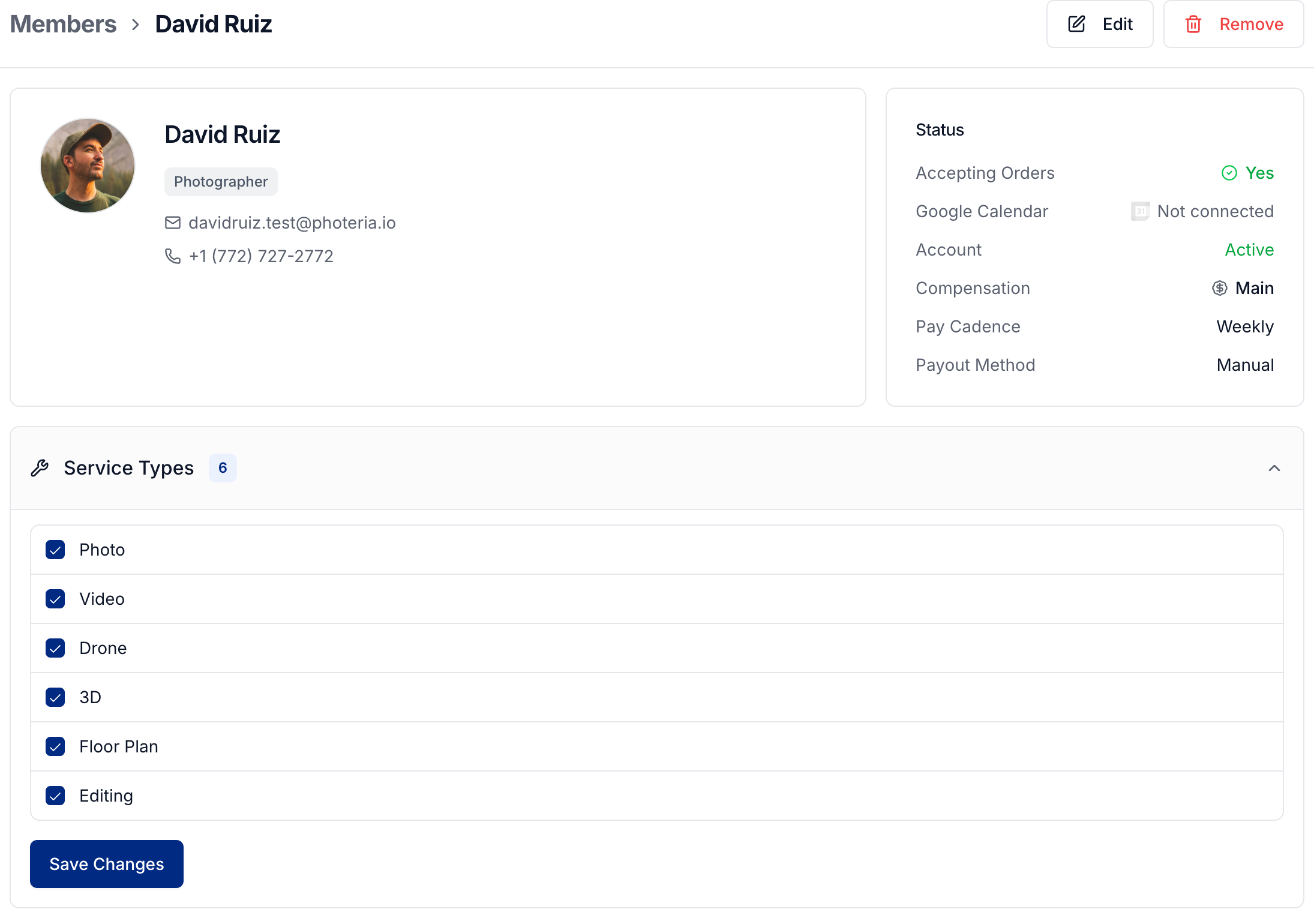
Expand Service Types, select the work they can perform, and select Save Changes. These types match the types assigned to your services. See Managing service types.
Expand Service Areas to choose where they work. Leave All areas enabled to cover every area, or choose specific areas and save. Configure your service areas first if none are available.
Remove a team member
Use the delete action on their row or Remove on their profile, then confirm. This removes their access to your organization.
You need Team: Read to view the roster and Team: Manage to invite, edit, or remove members.
Was this helpful?
Still need help? Share an idea