Setting photographer availability
Set working hours and service areas so clients can book your team at times and places each photographer can cover.
Written By David Dayan
Set working hours and service areas so clients can book your team at times and places each photographer can cover.
Set your working hours
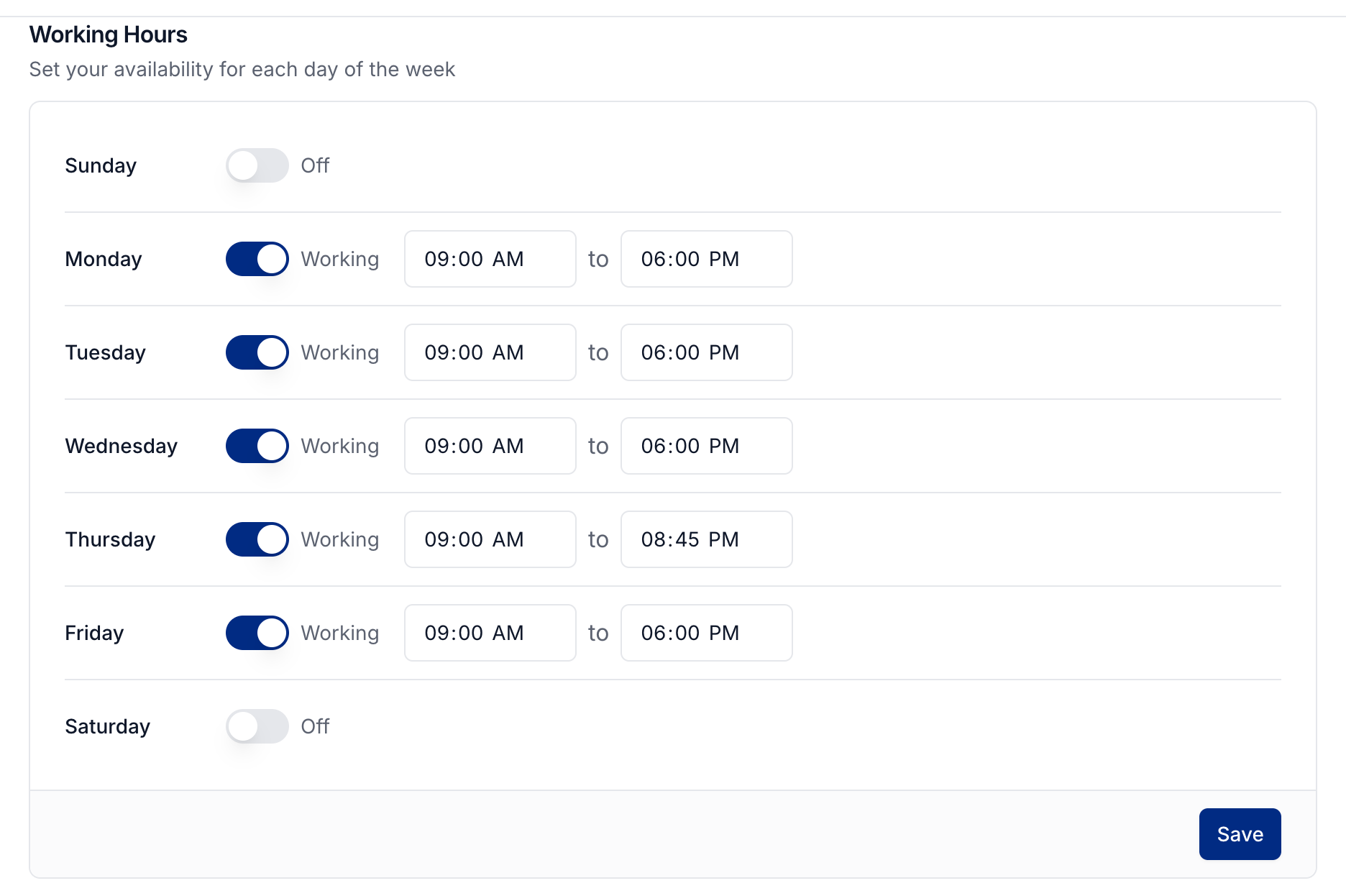
Open Settings → My profile and find Working Hours.
Turn on the days you work and set a start and end time for each day.
Select Save.
Days turned off have no bookable times.
Block time from Google Calendar
Connect your own account in the Google Calendar section of your profile. Choose which calendars block your availability and which calendar receives new appointments. See Connecting Google Calendar.
Choose who accepts bookings
Under Team → Members, turn on Accepting Orders for each photographer who should be offered for jobs. Turn it off while someone is on leave or when a staff member does not take shoots.
Assign their Service Areas and Service Types on the member profile. All Areas lets them work throughout your coverage; selected areas limit where they can be booked. Define those boundaries under Settings → Scheduling.
How bookable times are chosen
A photographer must accept orders, cover the property's area and requested service types, and have enough free time during working hours. Photeria also accounts for drive time between appointments and any connected calendar events that block availability.
Manual scheduling can use a time that conflicts with availability. Review the photographer's schedule before choosing one.
See The Appointments Calendar to review booked appointments.
Was this helpful?
Still need help? Share an idea