Managing client invoices
Create and send invoices, move items to a separate bill, split a payment, and manage reminders.
Written By David Dayan
Use invoices to decide what a client pays, when payment is due, and when they can see the bill. A job can have several invoices, such as one for photography and another for a later video order.
Open an invoice
Open Invoices and select an invoice. Use Show filters → Add filter to find drafts, unpaid invoices, or invoices that have not been sent. You can also open an invoice from the job's Order section.
A Draft is visible only to your team. A published invoice is available for the client to view and pay.
Edit details and items
Open the invoice's More actions menu and select Edit invoice.
Update the invoice number, dates, Tax rate, Notes, or Discount as needed.
Under Items, use Add item to select an item waiting under Not invoiced on this job. Use Add all not invoiced items when everything waiting belongs on this invoice.
Remove an item from the invoice if it should be billed later. It returns to Not invoiced on the job.
Select Save changes.
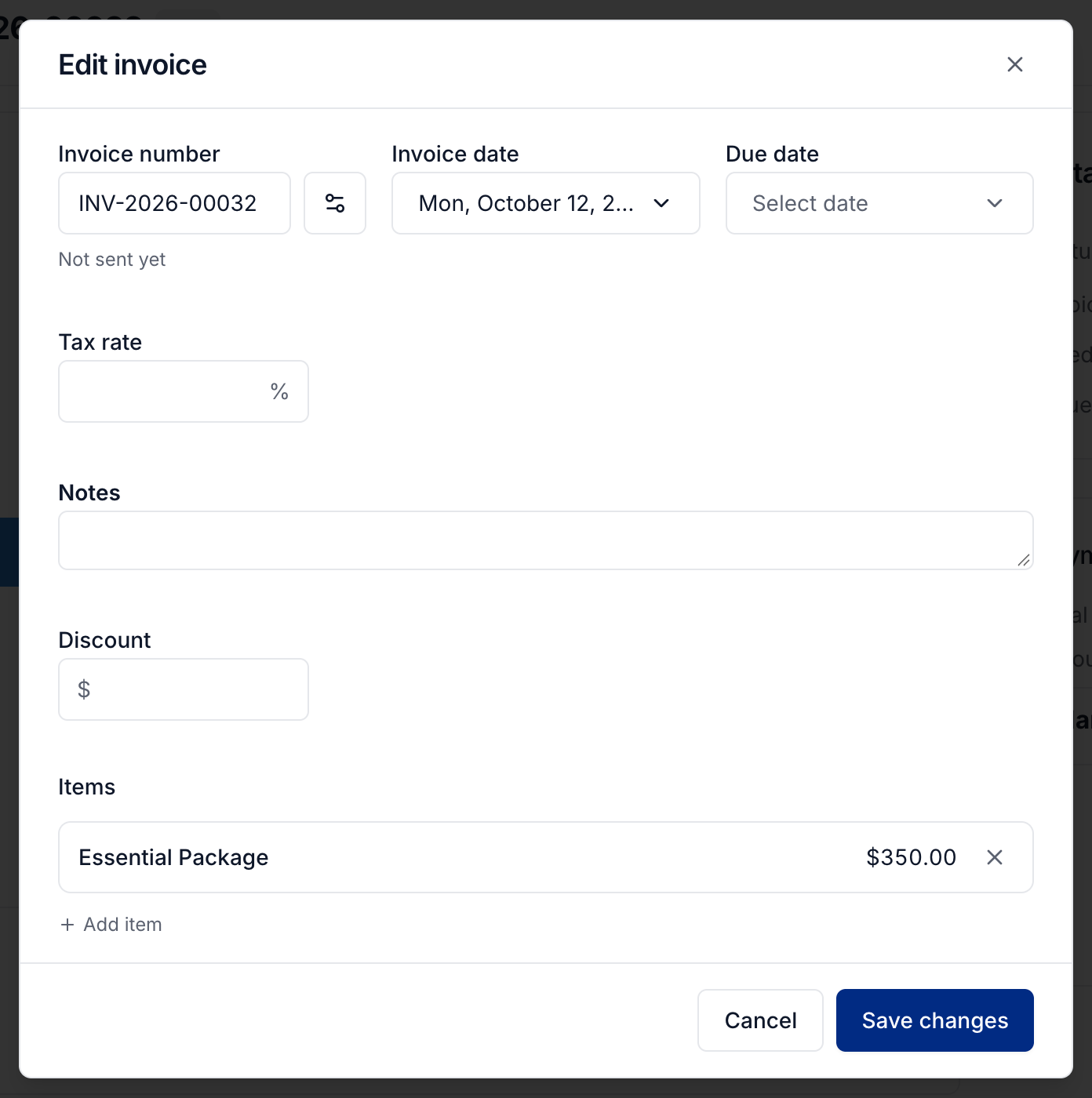
To add a new service, package, or fee, or change its price, first edit the job's order. Add item in the invoice editor selects existing job items; it does not create services.
An item already on another invoice must be moved from that invoice. Paid invoices cannot receive additional items.
For the numbering used on future invoices, see Configuring client invoicing.
Bill items on a separate invoice
Use this when part of the order should be billed separately, such as a video delivered after the photos.
Open the invoice that currently contains the items.
Select More actions → Move items.
Choose the items and the destination invoice, or choose New invoice to create a separate draft.
Select Move items.
Review the destination invoice before publishing or sending it.
Items move between invoices on the same job. They are not charged on both invoices.
Split the bill with another payer
Use Split payment when a brokerage or another eligible agent covers part of the bill.
Open the invoice and select More actions → Split payment.
Choose the payer under Bill to.
Enter the Amount they will cover.
Select Split payment.

The payer receives a separate invoice for their share, and the original invoice's balance is reduced accordingly. Review both invoices before sending them. The available payers depend on the agent and brokerage connected to the job.
Publish and send
Select Publish when a draft is ready for the client to view and pay. Publishing can start payment reminders after the due date, depending on the client's reminder settings, even if you have not emailed the invoice.
Select Send Invoice to review and send the invoice email. If it is still a draft, publish it when prompted before continuing. For an invoice already sent, use the available reminder or updated-invoice action. Save edits before sending so the email includes the current amounts.
When delivering media, the delivery email's Include invoice option lets you send the bill with the media links. Leaving a draft out of that email does not make it payable. Publish or send it separately when it is ready.
Use Share link to share a published invoice, or Download PDF to save a copy.
Manage reminders and payments
The invoice's Details section shows its reminder status. Use More actions → Stop reminders or Resume reminders for this invoice. Company and client reminder settings still determine whether reminders can be sent.
Use Add Payment for cash, checks, or payments received elsewhere. Follow Recording a manual payment, then check Balance Due.
If a published invoice has no payments, Move to draft removes it from the client's view while you work on it. Its items and number remain. Drafts do not receive reminders.
Was this helpful?
Still need help? Share an idea