Viewing and paying platform invoices
Use Settings → Billing → Past invoices to review charges your business receives from Photeria.
Written By David Dayan
Use Settings → Billing → Past invoices to review charges your business receives from Photeria. Invoices you send to agents and brokerages are managed separately under Invoices.
You need Billing: Read permission to view platform invoices and Billing: Manage permission to pay them.
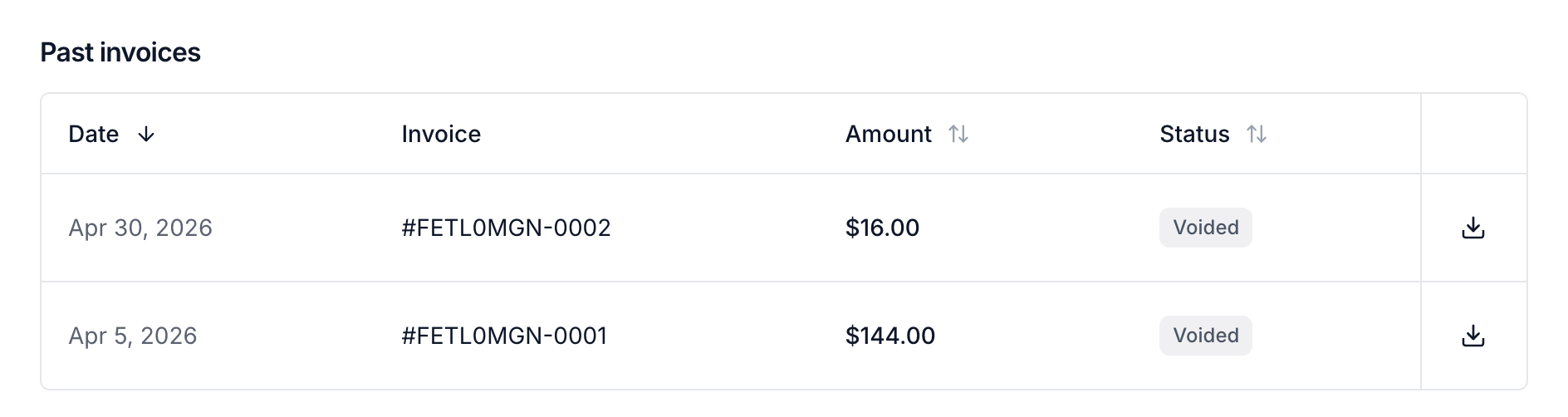
Review the charges
Select an invoice under Past invoices to open its details. Review its status, amount due, and individual listing charges before downloading or paying it.
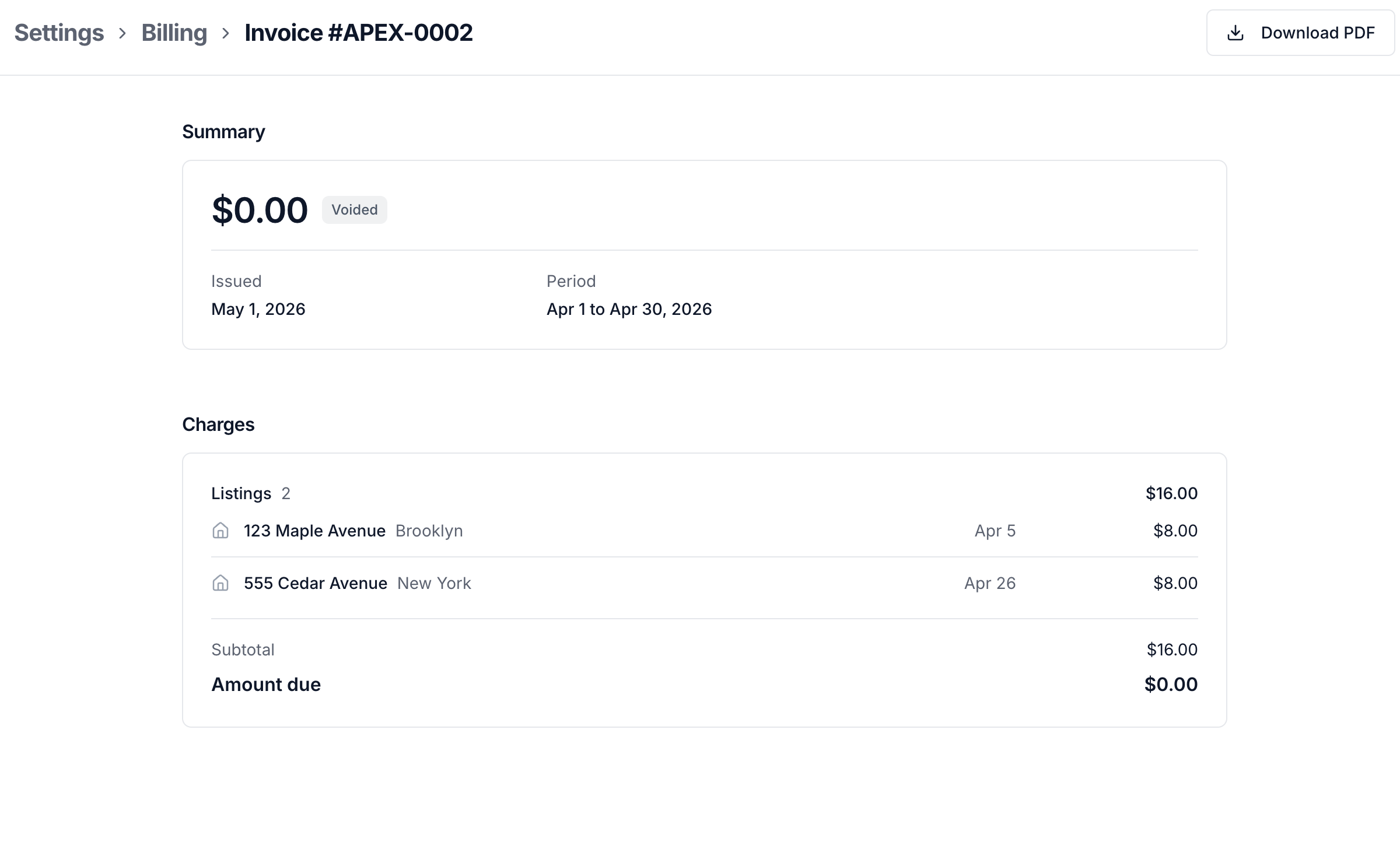
Pay an open invoice
Open Settings → Billing and find the invoice under Past invoices.
Select Pay now on its row.
Enter your payment details, review the amount, and select Pay with the displayed total.
An Awaiting Payment, Past Due, or Action Required invoice still needs payment. Action Required means the unpaid balance may affect account access. A Voided invoice has been cancelled and does not need payment.
Download an invoice
Select Download PDF on the invoice details page or its row to save a copy for your records. The PDF includes the invoice's current payment status.
See Managing your billing payment method to update the card used for automatic monthly payments.
Was this helpful?
Still need help? Share an idea