Configuring booking rules and appointment reminders
Choose how clients book appointments and when they receive a reminder under Settings → Scheduling.
Written By David Dayan
Choose how clients book appointments and when they receive a reminder under Settings → Scheduling. Save each section after changing it.
Send appointment reminders
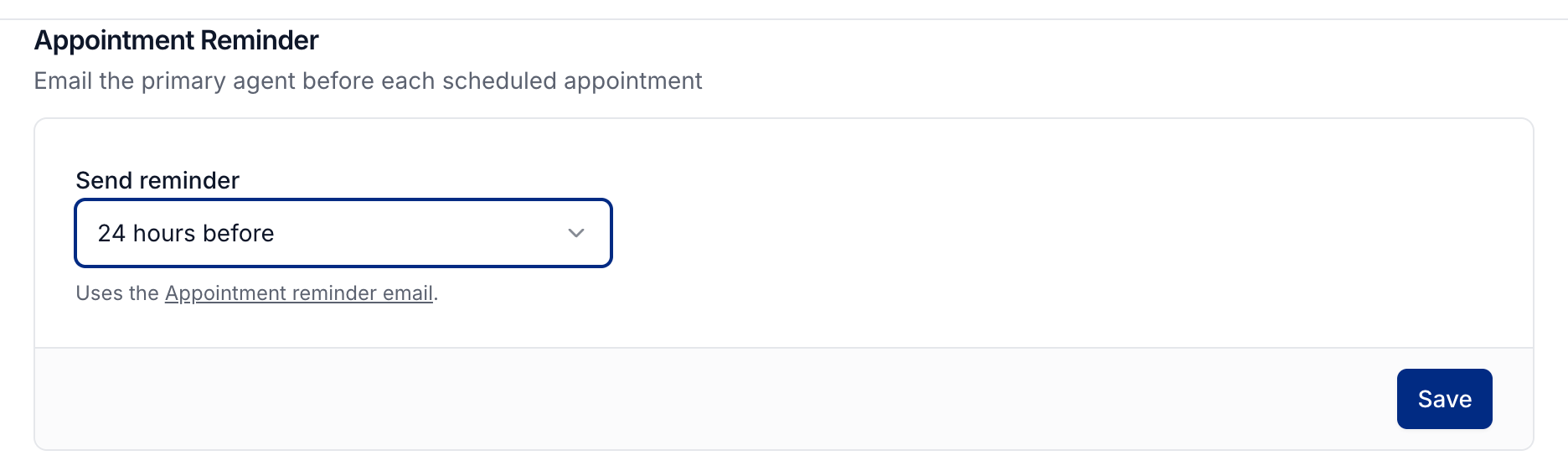
Find Appointment Reminder.
Set Send reminder to 1 hour before, 2 hours before, 24 hours before, or 48 hours before.
Select Save in that section.
Photeria emails the job's primary agent before each scheduled appointment. Appointment times in the email follow your organization's timezone. Choose Off to stop automatic reminders.
To change the message, open Settings → Notifications → Appointment reminder and create a custom template. Use Set as default on that template to make it the reminder message. See Customizing client notifications.
Let clients choose a photographer
Turn on Allow Photographer Selection to let clients choose a specific photographer when booking. With this off, Photeria assigns an available photographer based on the services and service area.
Allow same-day bookings
Turn on Allow Same-Day Booking if you accept bookings for today. With this off, clients can book starting the next day.
Leave time between appointments
Set Buffer minutes to add space between appointments before Photeria checks drive time. For example, use 15 minutes for packing equipment and preparing for the next shoot, in addition to travel time.
Schedule sunset services
Under Sunset Appointment Mode, choose how to schedule an order containing both regular and sunset services:
Separate appointments gives regular services and sunset services their own time slots.
Single appointment combines the services into one appointment around sunset.
These booking rules shape the available time slots for new bookings. They do not move appointments you have already scheduled.
Set your timezone
Your timezone is under Settings → General → Regional Settings. It controls how appointment times display, including existing appointments.
See The Appointments calendar to manage booked appointments.
Was this helpful?
Still need help? Share an idea