Managing job details
Update property access, appointments, services, and invoices for a job.
Written By David Dayan
Use the job page to update access instructions, plan appointments, and manage the client's order. Open the linked listing when you're ready to upload and deliver media.
Property and access
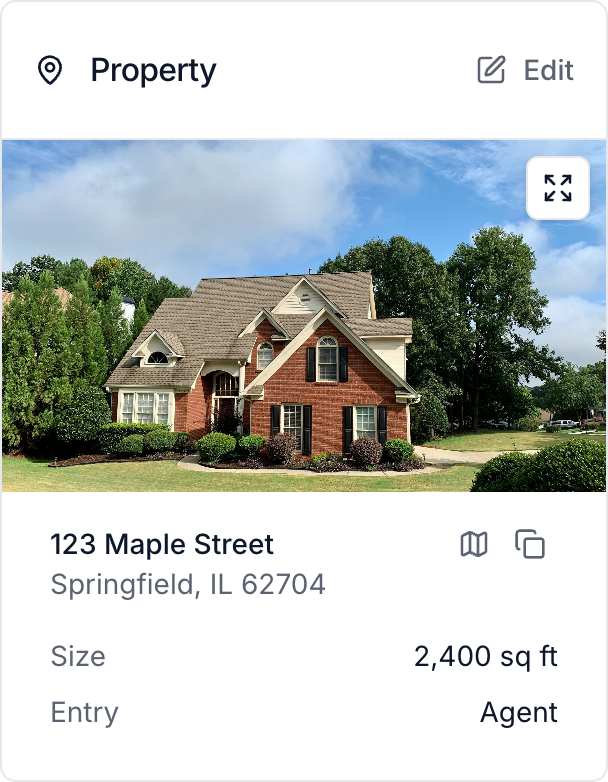
Select Edit on the Property card to update the address, unit, property size, entry method, and access notes. Use the address actions to copy the address or open directions. A lockbox code appears in the Property card when the entry method is Lockbox.
Client
Use the phone number or email on the Client card to contact the agent. To assign a different client, click Change and choose the agent.
Notes from the agent's profile appear on the Client card. Use them for standing preferences that apply to every job.
Appointments
Click an appointment's date and time to open its schedule, access instructions, directions, and services. See Managing an appointment.
Select New appointment to arrange another visit. Use the pencil beside an existing appointment to change its date, time, photographer, or services.
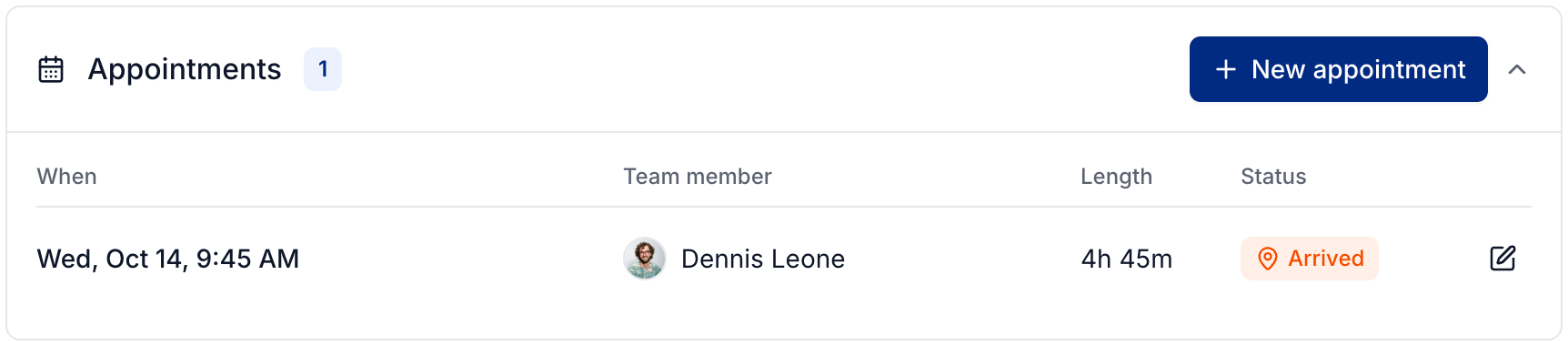
Open the appointment to record arrival or completion. Update the job's overall progress separately.
Services and invoices
Use Order to add or remove services and packages, or change a service's quantity. See Managing a job's services and packages.
Open an invoice from Invoices on the job to adjust its details, assign items, record payments, or send it. Use Order to change service prices. See Managing client invoices.
Tasks
Use New task to add work for the job. Workflows can also create tasks automatically. Check a task to complete it. See Task Management.
Header actions and activity log
Use the status dropdown at the top to update job progress. Select Open Listing to upload media or prepare delivery. If the listing is not active yet, the action is Activate Listing.
Check Activity when you need to confirm a change, payment, notification, or delivery. You can delete a job with Delete, but jobs with recorded payments cannot be deleted.
Was this helpful?
Still need help? Share an idea