Recording a manual payment
Record a manual payment when a client pays outside the online checkout, such as by cash, check, bank transfer, or another agreed method.
Written By David Dayan
Record a manual payment when a client pays outside the online checkout, such as by cash, check, bank transfer, or another agreed method.
Add a payment
Open Invoices and select the invoice.
Under Payment, select Add Payment.
Enter the amount received.
Choose the payment method.
Confirm the payment date.
Add a note when you need to keep a check number, reference number, or other detail with the payment.
Select Add Payment.
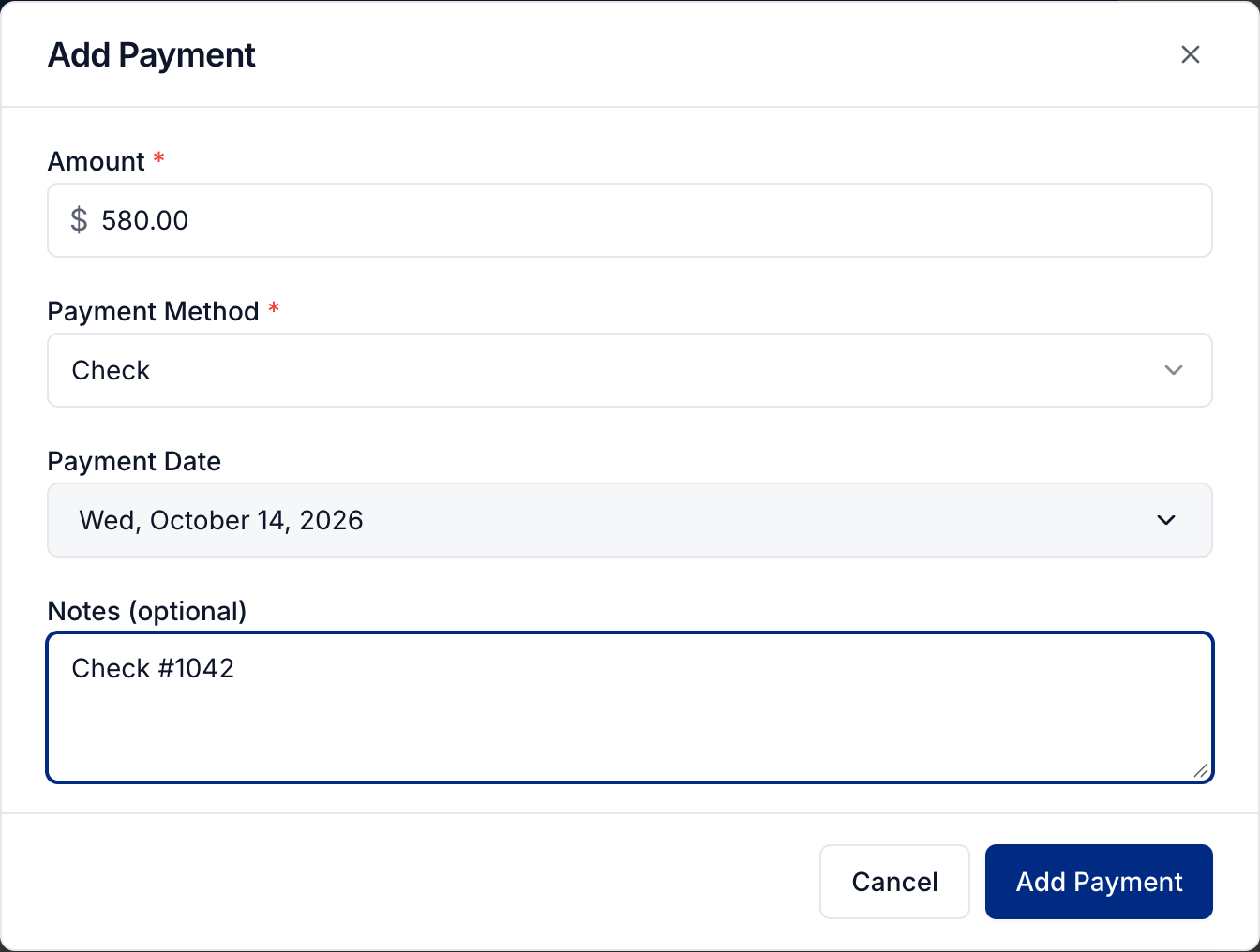
Choose Other when the method is not listed, then enter a clear label for it.
The invoice becomes Partial when a balance remains and Paid when the full amount has been recorded.
Send a receipt
If Send payment receipts is on for the client, Photeria emails the job's agent when you add a manual payment. This also applies to partial payments. Set the default and any client overrides in Client invoicing settings.
Correct a manual payment
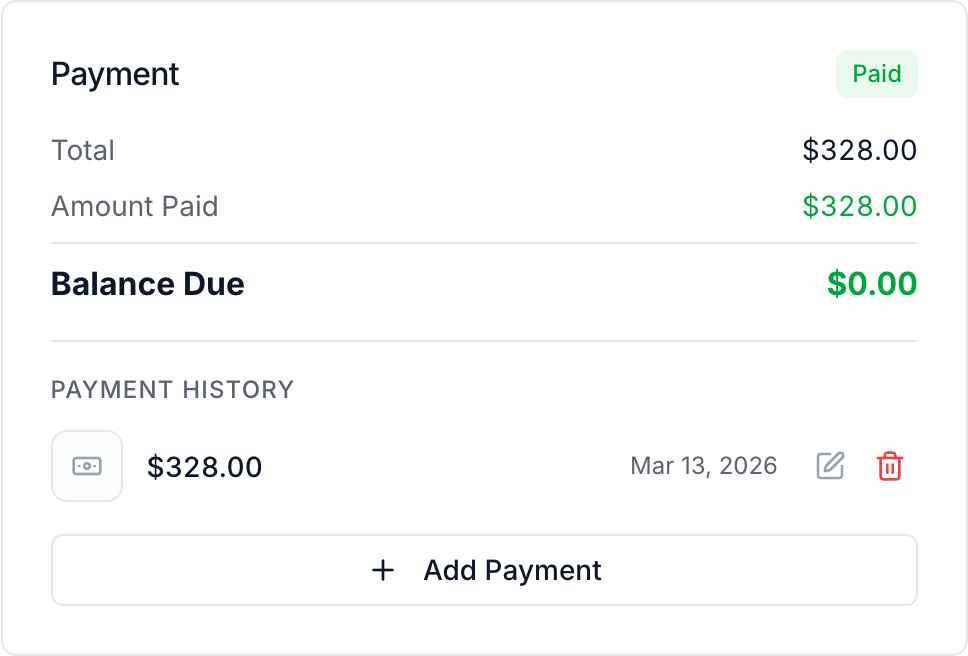
Under Payment History, select the pencil beside a manual payment, make your correction, and select Save Changes. To remove an incorrectly recorded payment, select its trash icon and confirm the deletion.
Payments confirmed by an online payment processor cannot be changed this way.
You need Invoices: Manage permission to add, edit, or delete a manual payment.
Was this helpful?
Still need help? Share an idea