Creating and managing services
Services are the individual items clients can order, such as interior photos, a floor plan, or virtual staging.
Written By David Dayan
Services are the individual items clients can order, such as interior photos, a floor plan, or virtual staging. Set their prices, appointment rules, and included deliverables once, then offer them through your order forms.
Create a service
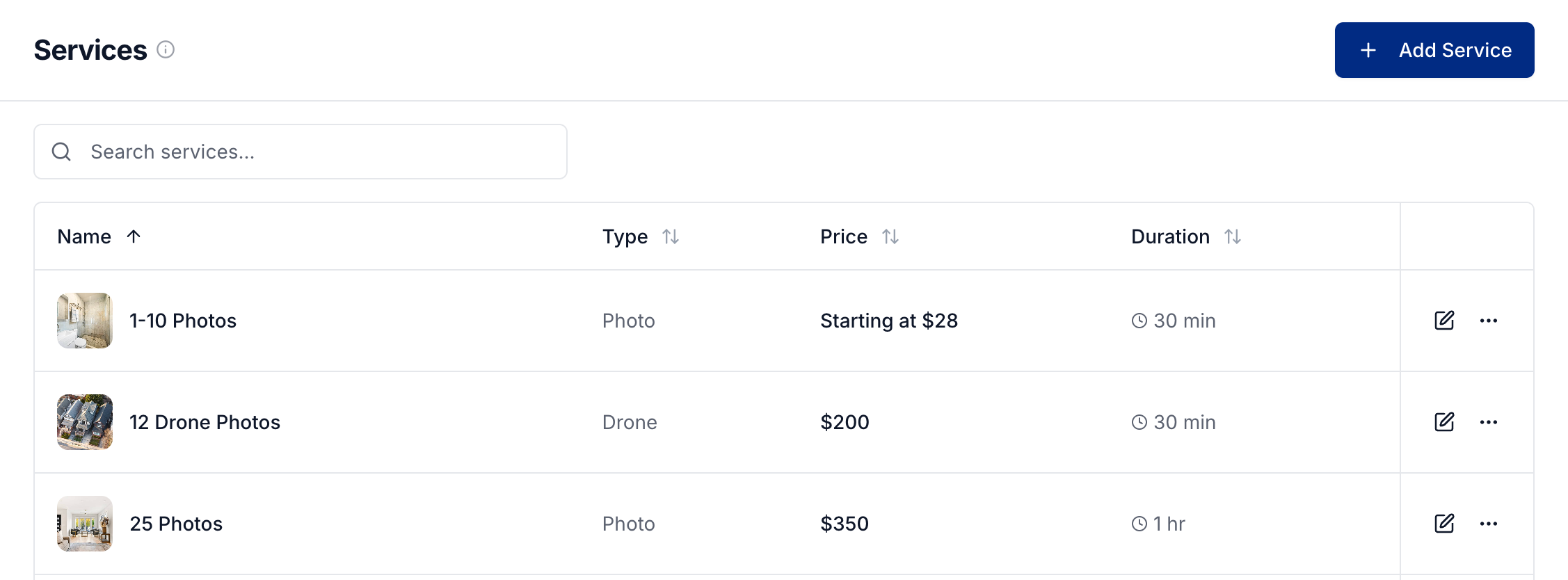
Open Ordering → Services and click Add Service.
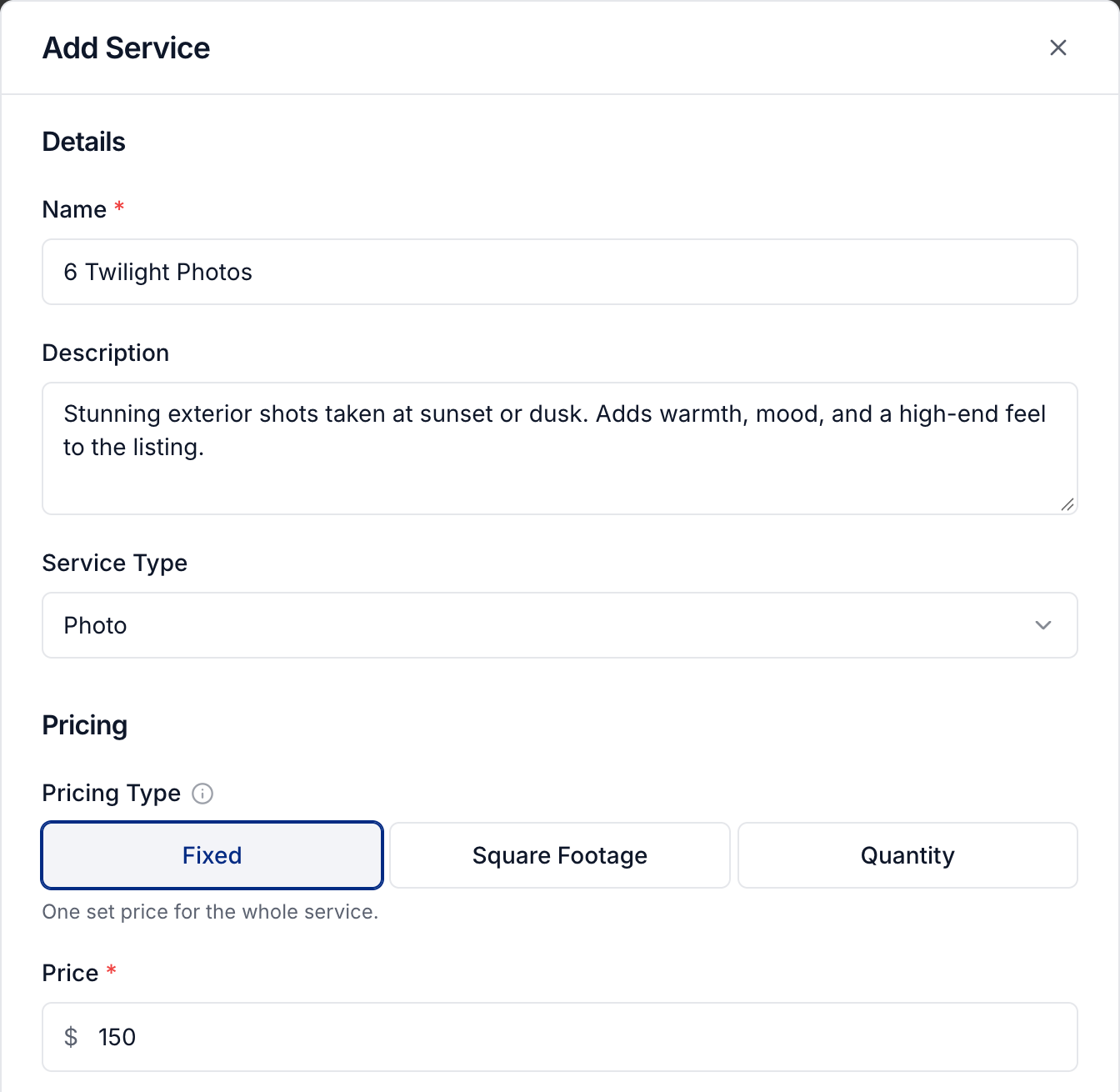
Enter the client-facing Name and Description.
Choose a Service Type. For scheduled work, this determines which team members can take the appointment. Choose No service type when the service does not need that assignment rule.
Choose how to charge
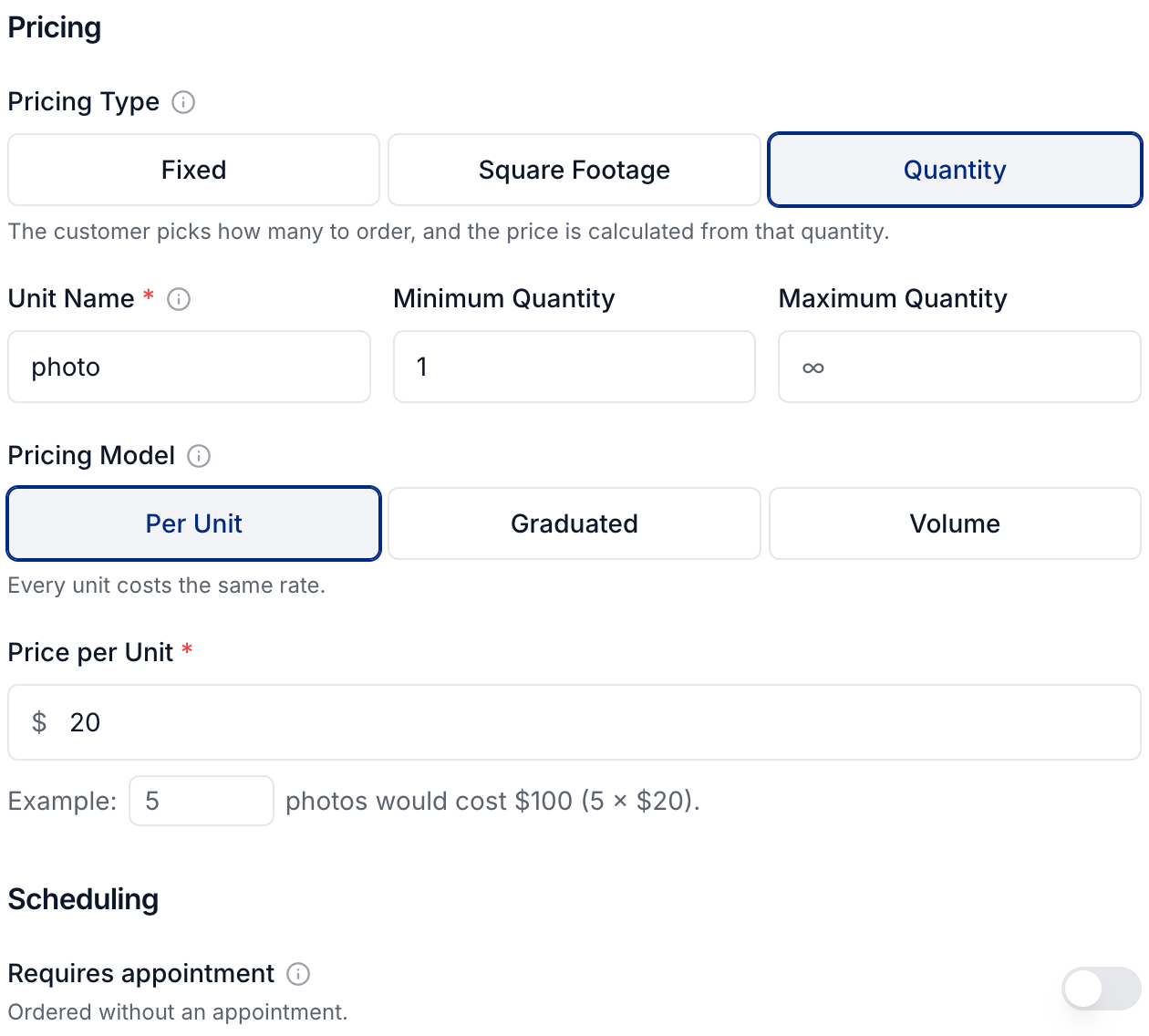
Under Pricing Type, choose Fixed for one price, Square Footage for a price based on property size, or Quantity when clients choose how many units to order.
For Quantity pricing:
Enter a singular Unit Name, such as photo or room.
Set the Minimum Quantity and, if needed, Maximum Quantity.
Choose Per Unit and enter the Price per Unit for a consistent rate.
Enter a quantity under Example to check the total.
At $20 per photo, five photos cost $100.
Quantity and square footage pricing also support Graduated and Volume tiers. Graduated charges each tier's units at that tier's rate and adds the fees for tiers reached. Volume selects one tier from the total quantity or size and applies its rate to the whole order. Check quantities around the boundaries, especially when a volume discount lowers the rate.
See Square footage pricing for worked tier examples and setup instructions.
Set appointment rules
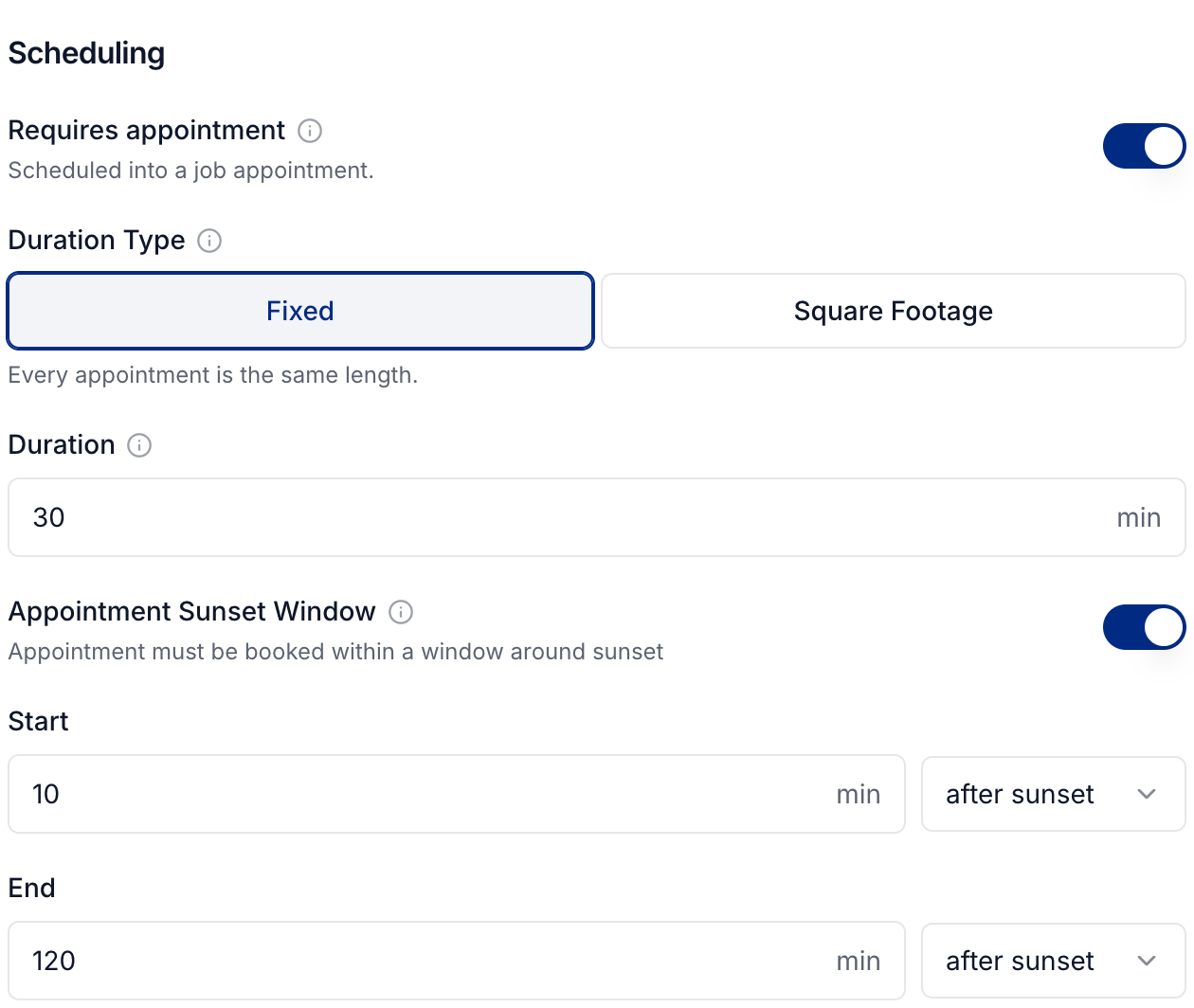
Turn on Requires appointment for work that needs a scheduled visit.
Choose a Duration Type. Use Fixed for one appointment length or Square Footage when larger properties take longer. Quantity-priced services can also use Quantity for their duration.
For sunset work, enable Appointment Sunset Window and set the Start and End relative to sunset.
The duration affects which appointment times are available. Turn Requires appointment off for work completed without a visit, such as virtual staging.
Help clients choose and prepare
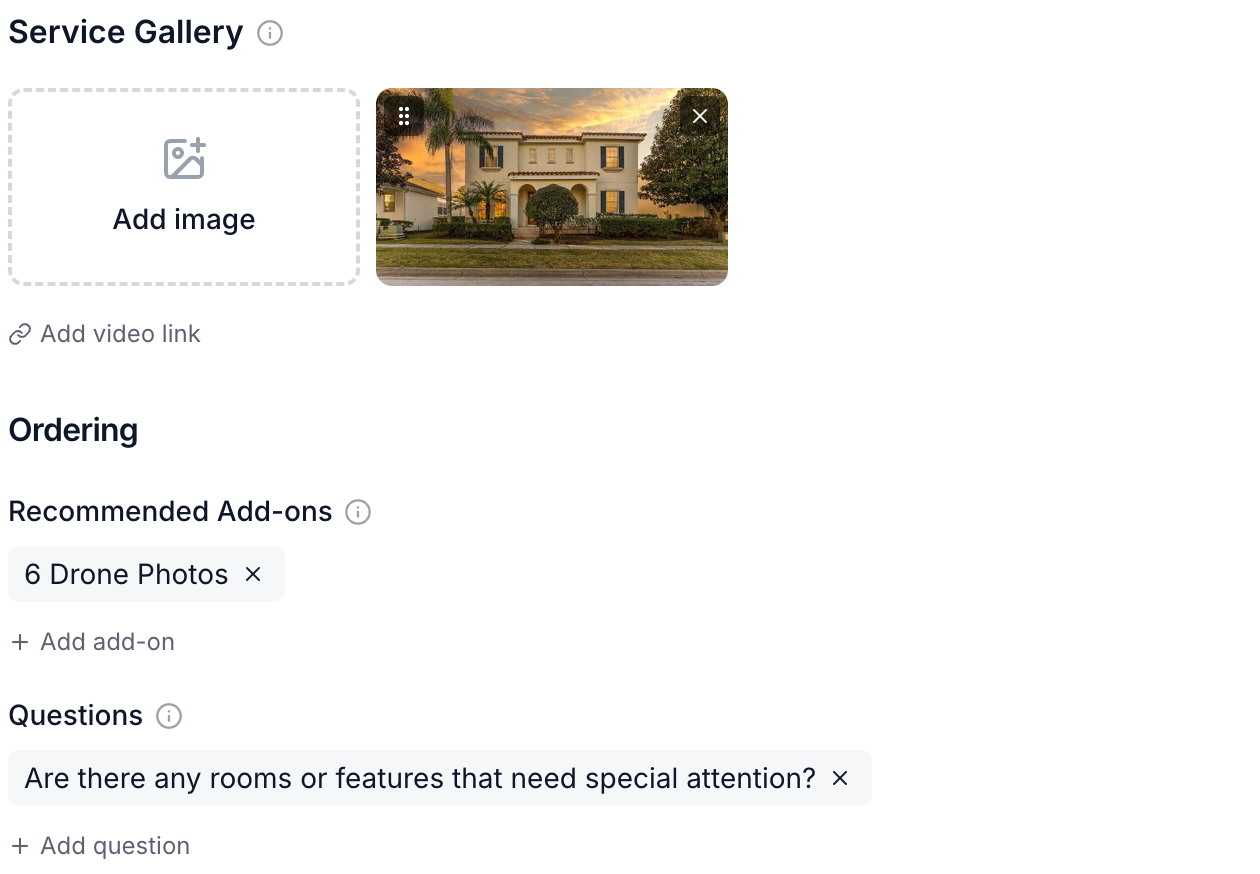
Add photos or a video under Service Gallery to show examples of the work. Use Add add-on to recommend related services during ordering.
Use Add question for information you need when someone orders this service. Create reusable questions first under Ordering → Questions. See Custom questions.
Prepare included deliverables automatically
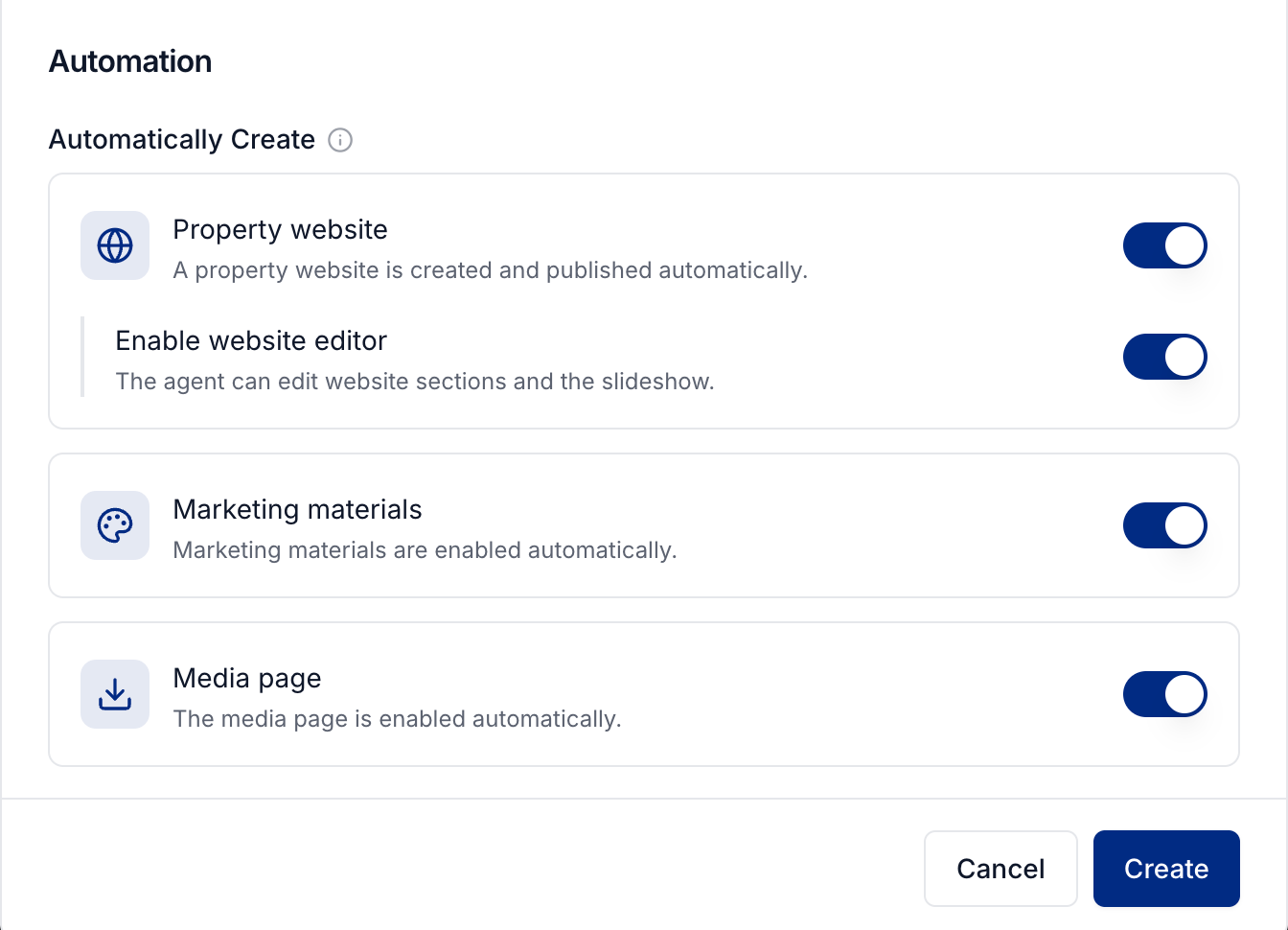
Under Automatically Create, enable the deliverables included with this service:
Property website creates and publishes the listing's website. Turn on Enable website editor if the client should be able to change its sections and slideshow.
Marketing materials enables the listing's marketing materials.
Media page enables the page clients use to access their media.
For recurring team work such as photo editing, create a workflow and select this service as a condition.
Save and offer the service
Click Create to save a new service or Update when editing one. Add the service to an order form so clients can order it.
Changing a pricing model or removing tiers can reset affected custom catalog prices. Review the listed catalogs before confirming that change, then update their prices as needed.
Was this helpful?
Still need help? Share an idea