Adding videos and 3D tours
Upload videos or add links to videos and interactive tours.
Written By David Dayan
Add a walkthrough video or an interactive tour to a listing so clients can share more than still photos. You can upload a video file or use a link to a video or tour already hosted elsewhere.
Choose where video uploads are stored
To upload video files through Dropbox, first connect Dropbox. Then open Settings → Media, choose Dropbox under Video Hosting, and select Save.
This setting applies to new file uploads. Videos added from external links do not depend on it. Selecting None disables file uploads.
Upload a video
Open the listing and click Add beside Videos.
Under Upload File, drop in your files or click Browse Files. Uploads start when you select the files.
Wait for the uploads to finish, then click Add.
Keep the page open while files upload. Dropbox accepts video files up to 2 GB.
Add a video link
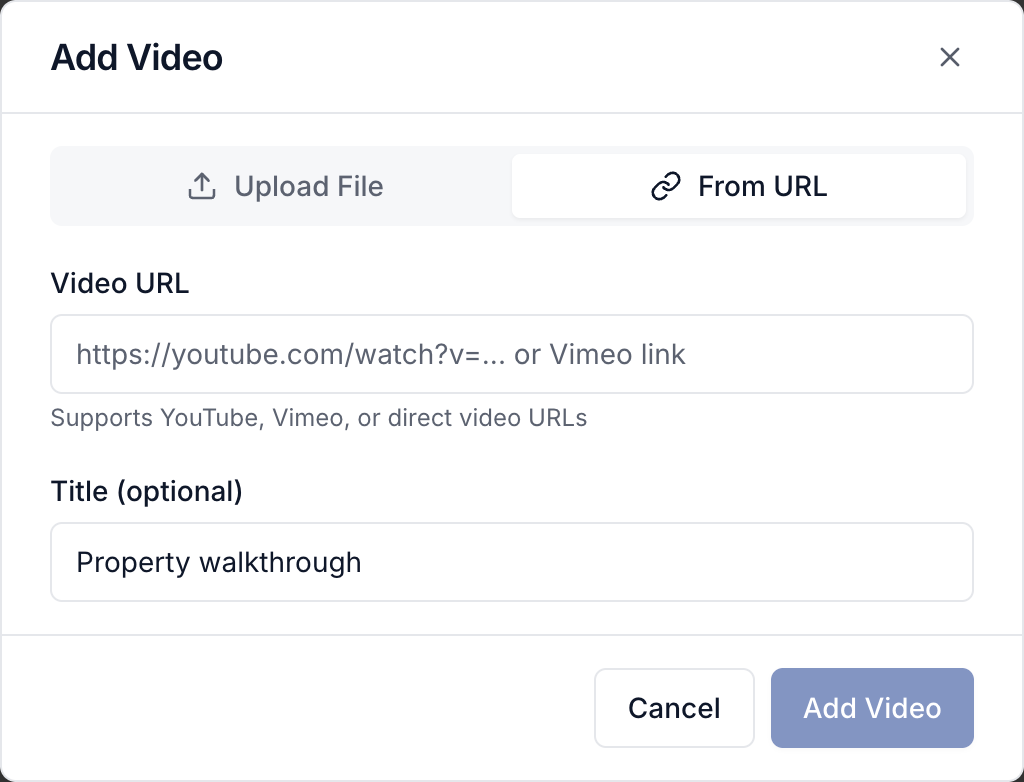
Click Add beside Videos, then choose From URL.
Paste a YouTube, Vimeo, or direct video link into Video URL.
Add a Title if needed, then click Add Video.
Add a 3D tour
Click Add beside 3D Tours.
Enter a Title and paste the shareable link into Tour URL.
Check the Matterport preview, or open the link to check another provider's tour.
Click Add 3D tour.
For floor plans and other files, see uploading and organizing listing media. To control how media appears on the listing, see customizing listing sections.
Was this helpful?
Still need help? Share an idea